
If Safari Inspect Element not showing is the problem, first check Safari’s developer setting. Current Safari versions hide the Develop menu until web developer features are enabled.
Once enabled, Safari adds the Develop menu and gives you access to Web Inspector for HTML, CSS, JavaScript, network activity, storage, and other debugging tools.
Quick Answer
To restore Inspect Element in Safari:
- Open Safari.
- Choose Safari → Settings.
- Open Advanced.
- Enable Show features for web developers.
- Open a normal webpage and right-click or Control-click an element.
- Select Inspect Element.
You can also open Web Inspector with Option + Command + I after developer features are enabled.
Video: Restore Inspect Element in Safari
This short walkthrough shows where Safari keeps the developer setting, how to enable the Develop menu, and how to verify Inspect Element.
1. Why Is Safari Inspect Element Not Showing?
Safari exposes Web Inspector through its developer features. If those features are disabled, the Develop menu does not appear and the normal webpage context menu will not provide Inspect Element.
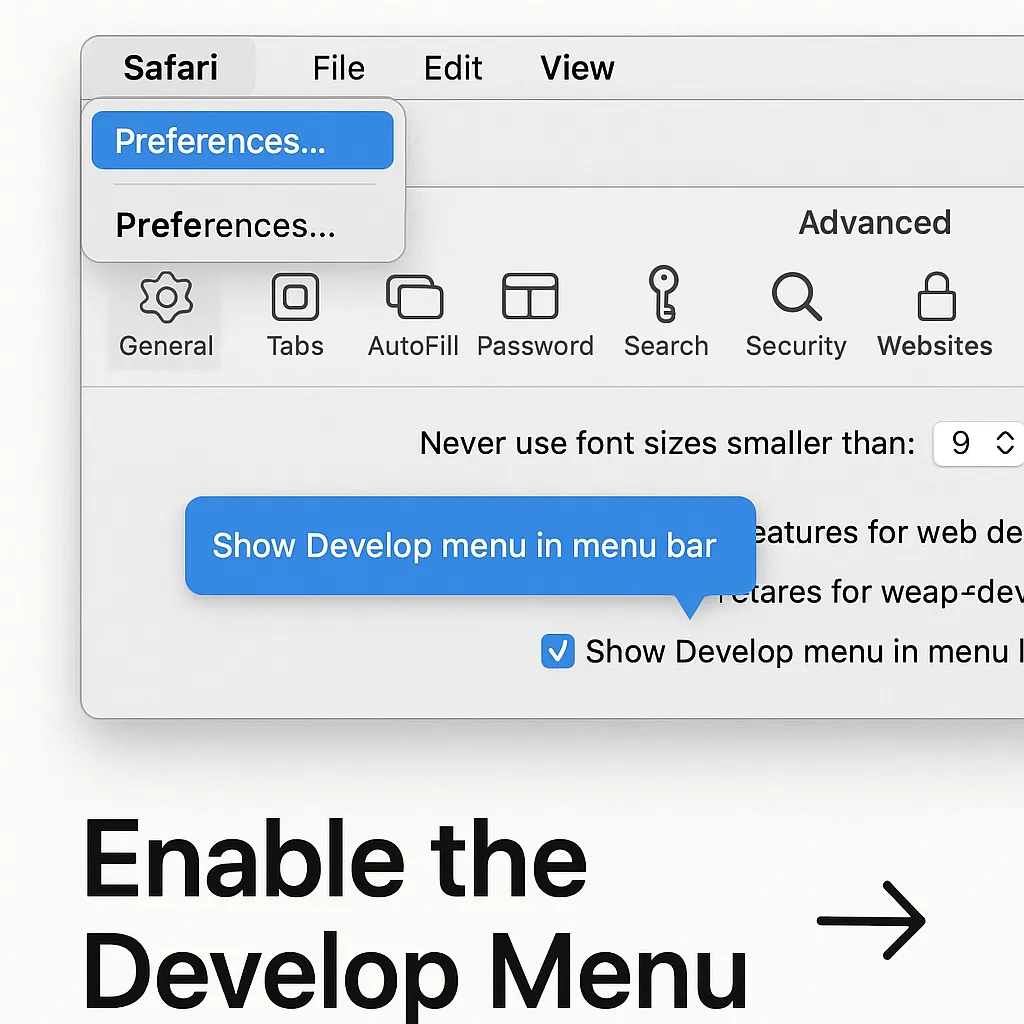
Apple’s current Safari documentation uses the option name Show features for web developers. Older Safari versions may use wording such as Show Develop menu in menu bar, so screenshots from older guides can look different.
2. Enable Web Inspector in Safari
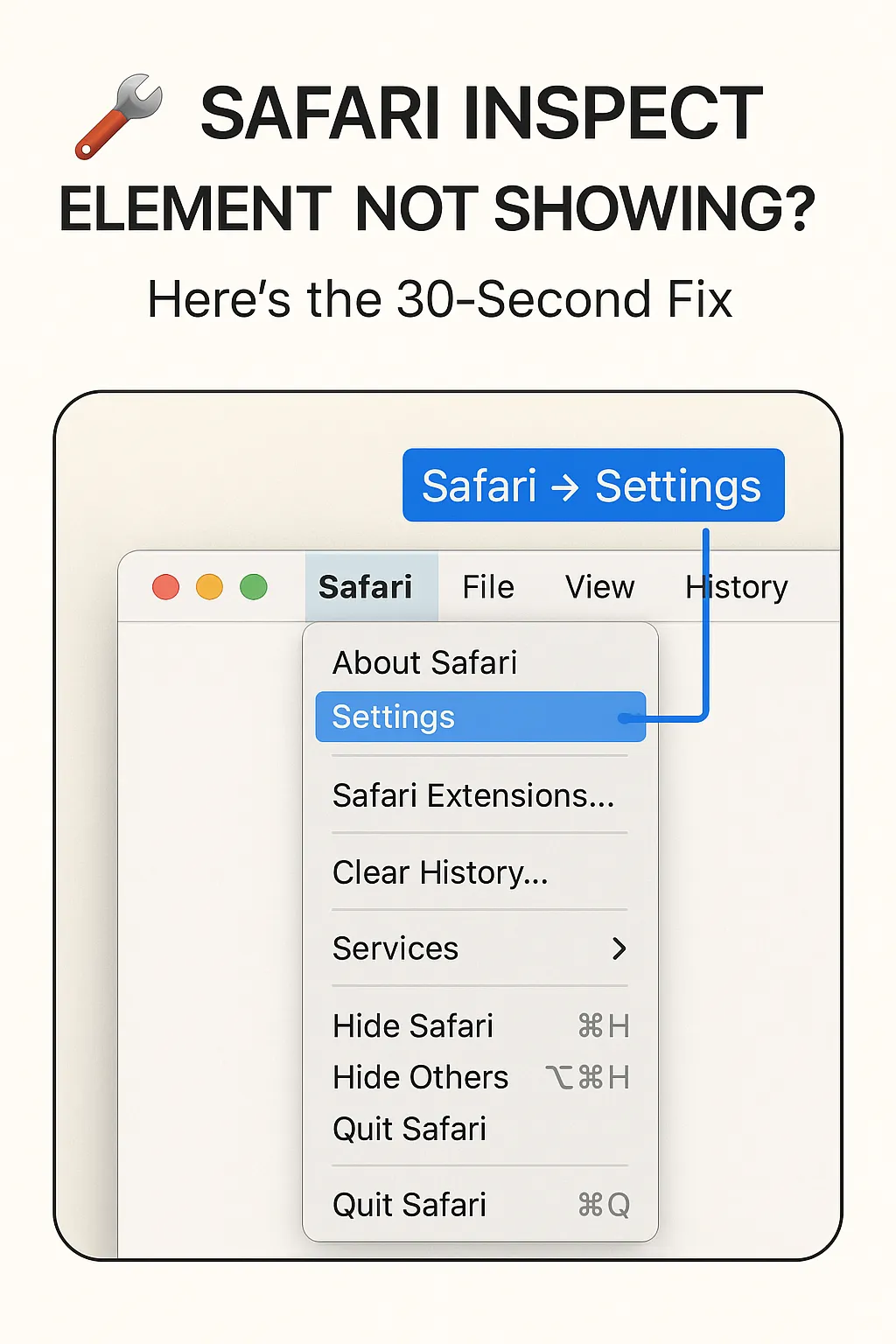
Step 1: Open Safari Settings
Open Safari, then choose Safari → Settings. You can also press Command + ,.
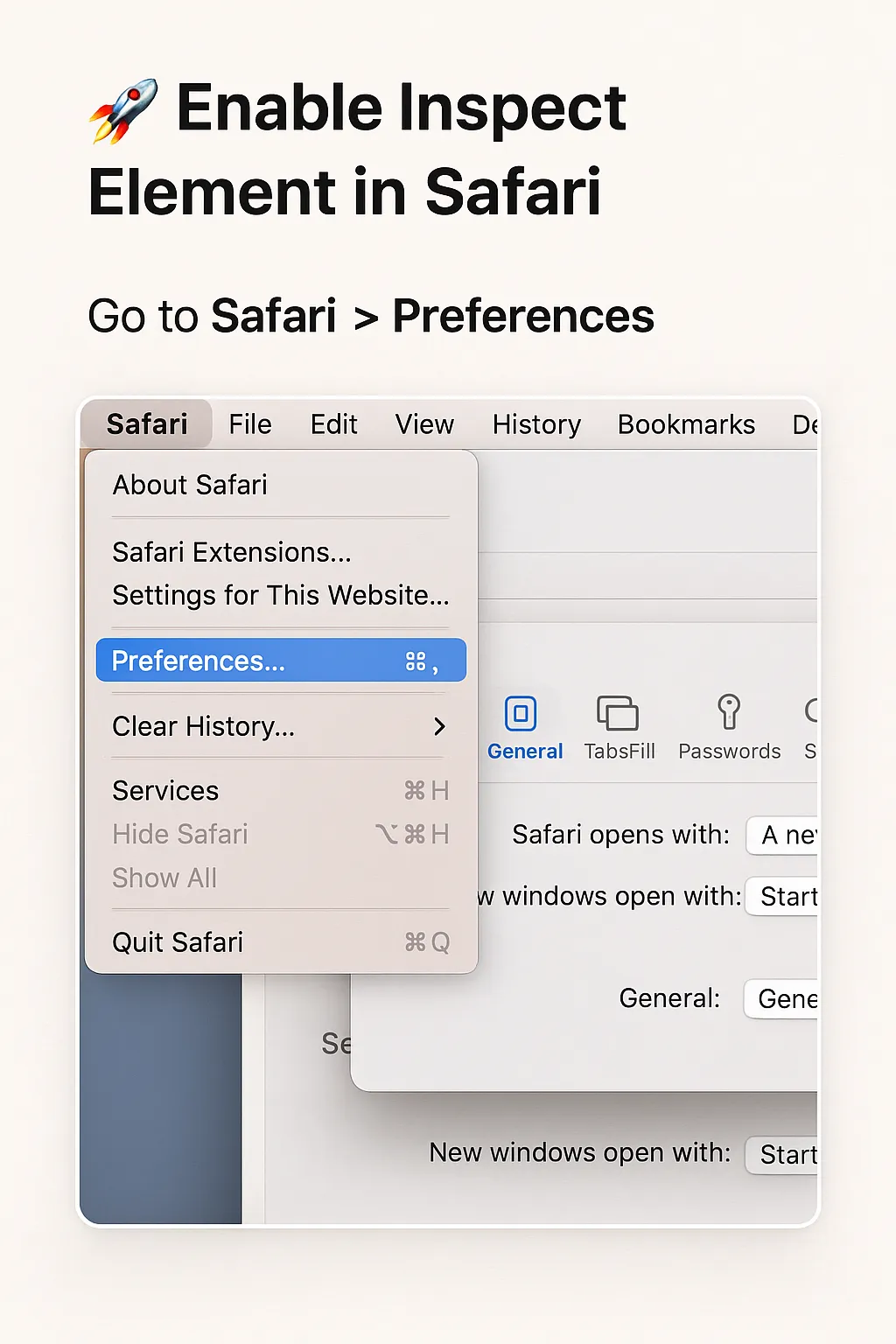
Step 2: Open Advanced Settings
Select Advanced. On older Safari releases, the window may be called Preferences rather than Settings.
Step 3: Enable Web Developer Features
Enable Show features for web developers. Safari then adds Develop to the menu bar.
Apple confirms this path in the Safari Develop menu documentation.
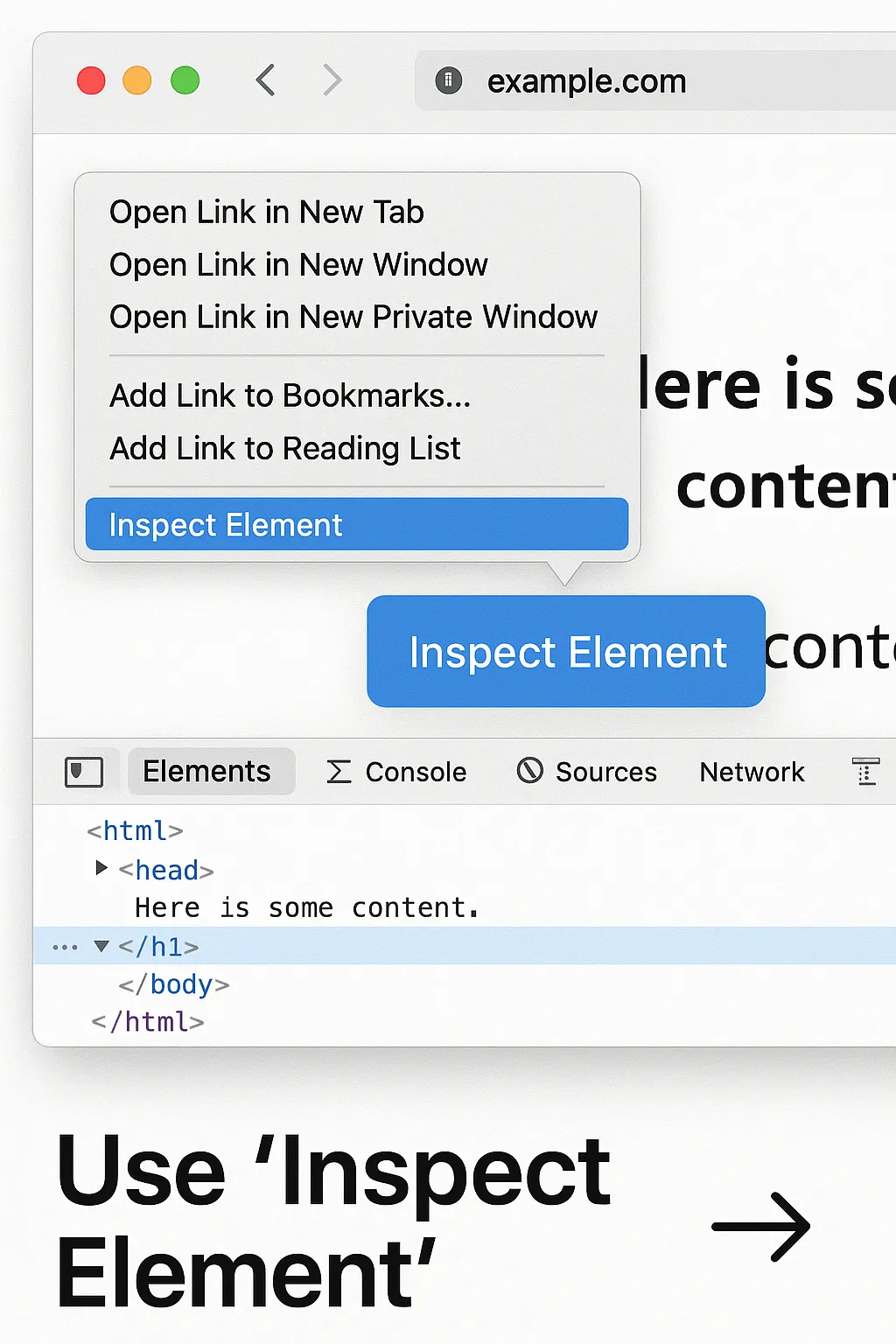
Step 4: Open Inspect Element
Open the webpage you want to debug, then right-click or Control-click an element and select Inspect Element. You can also choose Develop → Show Web Inspector.
3. Verify Safari Web Inspector
After restoring Inspect Element, verify the developer tools in more than one way:
- The Develop menu appears while Safari is active.
- Right-clicking a normal webpage shows Inspect Element.
- Develop → Show Web Inspector opens the inspector.
- Option + Command + I opens or toggles Web Inspector.
Web Inspector can examine HTML, CSS, JavaScript, network requests, website storage, graphics, and other browser activity. Apple’s Web Inspector documentation covers the available debugging tools.
4. Responsive Design Mode Is Separate
Responsive Design Mode is another Safari developer tool. It previews how a webpage responds to different viewport sizes and pixel ratios, but it does not control whether Inspect Element appears.
With developer features enabled, choose Develop → Enter Responsive Design Mode or press:
Control + Command + RApple documents this shortcut in the Responsive Design Mode guide.
5. Safari Inspect Element Not Showing After Enabling It
If Safari Inspect Element not showing continues after enabling developer features, check these items:
- Confirm Develop is visible: If it is missing, return to Safari → Settings → Advanced.
- Test a normal webpage: Do not test only on Safari settings, the start page, or another special browser interface.
- Use the menu command: Try Develop → Show Web Inspector.
- Use the shortcut: Press Option + Command + I.
- Quit and reopen Safari: This can refresh the menu state if the UI did not update.
- Check managed-device policy: On a work or school Mac, ask the administrator before removing configuration profiles or changing security settings.
Clearing browser caches is not a normal fix for a missing Develop menu. Extensions should only be investigated when the problem is limited to a particular webpage or context menu.
For more Mac troubleshooting articles, visit the SupportSolved macOS help section.
Frequently Asked Questions
How do I open Inspect Element without right-clicking?
Choose Develop → Show Web Inspector or press Option + Command + I after developer features are enabled.
Why do older guides say Show Develop menu in menu bar?
Safari’s wording changed. Current Apple documentation calls the option Show features for web developers.
Do I need to clear Safari cache first?
No. A missing Inspect Element option is normally a developer-feature setting issue rather than a website-cache issue.
Does this require a Safari extension?
No. Web Inspector and the Develop menu are built into Safari on macOS.
Why is Safari Inspect Element not showing only on one page?
First confirm Web Inspector opens from the Develop menu. If it works elsewhere, the issue is likely specific to that page, browser context, extension behavior, or the element being clicked rather than the global Safari developer setting.
Summary
When Safari Inspect Element not showing is the issue, open Safari → Settings → Advanced and enable Show features for web developers.
Then right-click a normal webpage and choose Inspect Element, select Develop → Show Web Inspector, or press Option + Command + I.
Do not begin by clearing Safari data or changing unrelated macOS settings. First confirm that developer features are enabled and the Develop menu appears.
