
The WordPress posts per page setting controls how many entries appear on the main blog page and, depending on the theme or query, other archive pages. Changing it can make long post lists easier to scan and reduce the amount of content, images, and markup loaded in a single archive request.
There is no universal number that is best for every website. A text-focused blog can display more posts than an image-heavy magazine layout, while a custom page-builder widget may ignore the global Reading setting completely.
Quick Answer
To change the WordPress posts per page value:
- Open the WordPress dashboard.
- Go to Settings → Reading.
- Find Blog pages show at most.
- Enter the number of posts to display.
- Select Save Changes.
- Clear the site and CDN cache, then test the blog and archive pagination.
Start with a value that fits the archive design—often between 6 and 12—and test page weight, loading behavior, readability, and pagination before deciding.
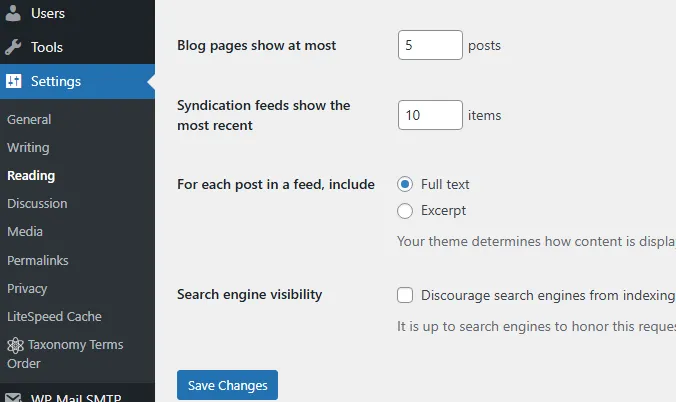
1. Change WordPress Posts Per Page
- Sign in to the WordPress administration panel.
- Open Settings → Reading.
- Locate Blog pages show at most.
- Enter a positive whole number, such as 6, 8, 10, or 12.
- Select Save Changes.
- Open the public blog page in a private browser window and count the displayed posts.
The WordPress Reading screen describes this field as the number of posts displayed per page. It is separate from the Syndication feeds show the most recent setting, which controls the RSS feed rather than the public archive.
Review the official WordPress Reading Settings documentation for the complete list of options on this screen.
2. What Is the Best Number of Posts Per Page?
There is no SEO-tested number that works for every site. The ideal WordPress posts per page value depends on the amount of content rendered by each post card.
| Archive Style | Reasonable Starting Point | What to Test |
|---|---|---|
| Large featured images and long excerpts | 4–6 posts | Image weight, page height, mobile scrolling |
| Standard blog cards | 6–10 posts | Loading speed, readability, ad placement |
| Compact text-focused list | 10–15 posts | Navigation depth and list clarity |
These ranges are starting points, not ranking rules. Compare the archive on desktop and mobile, and measure the actual page instead of selecting a number only because another website uses it.
3. Does the Setting Affect Performance or SEO?
The WordPress posts per page value can affect the amount of HTML, text, images, scripts, and styling loaded on an archive page. Reducing an unusually high value may improve the page when every post card contains large images or expensive dynamic elements.
However, changing 10 posts to 8 is not automatically an SEO improvement. Search performance also depends on image optimization, caching, server response time, theme code, internal linking, pagination, content quality, and whether search engines can reach older posts.
Archive pages naturally repeat post titles, excerpts, dates, and thumbnails. This is normal WordPress behavior and should not be described as a duplicate-content penalty by itself. Use concise excerpts, optimized thumbnails, clear pagination, and useful category structures.
- Use appropriately sized WebP or AVIF thumbnails when supported.
- Set image width and height attributes to reduce layout movement.
- Avoid loading full post content on archive pages.
- Keep numbered or previous/next pagination accessible.
- Do not hide older archive pages from crawling without a specific reason.
4. Verify the WordPress Posts Per Page Setting
- Clear the WordPress cache.
- Purge the CDN or reverse-proxy cache when one is active.
- Open the main posts page while signed out.
- Count the standard posts shown in the main loop.
- Open page 2 and confirm that the pagination works.
- Check category, tag, author, date, search, and custom post-type archives separately.
- Repeat the check on mobile.
Sticky posts can appear before the normal list on the blog home page, so the visible card count may not always look identical to a basic expectation. Also confirm whether the layout contains separate featured-post sections or secondary queries.
5. Why the Number May Not Change
When the WordPress posts per page setting has no effect, a theme, plugin, page builder, or custom query is usually applying its own limit. WordPress also notes that static-front-page plugins and other post-display tools can affect Reading settings.
- Block Editor Query Loop blocks
- Elementor, Divi, Bricks, and other page-builder post widgets
- Theme archive or blog modules
- Custom homepage templates
- Custom
WP_Queryinstances - The
pre_get_postsaction - WooCommerce product catalog settings
- Plugins that replace or filter archive queries
If a page was built with a Query Loop or page-builder widget, edit that element and look for settings named Items per page, Posts per page, Count, or Limit.
Temporarily disabling all overrides is not always practical on a live site. Use a staging environment or a maintenance workflow before testing theme and plugin changes. The SupportSolved WordPress maintenance guide explains how to protect visitors during planned work.
6. Set a Different Limit for One Archive
When the global Reading value should remain unchanged, developers can modify the main query through pre_get_posts. The example below displays eight posts on category archives:
add_action( 'pre_get_posts', 'supportsolved_category_posts_per_page' );

function supportsolved_category_posts_per_page( $query ) {
    if (
        ! is_admin()
        && $query->is_main_query()
        && $query->is_category()
    ) {
        $query->set( 'posts_per_page', 8 );
    }
}
The checks are important:
! is_admin()prevents the front-end adjustment from changing administration queries.$query->is_main_query()targets the primary archive instead of sidebar and footer loops.$query->is_category()limits the change to category archives.
The official WordPress pre_get_posts reference recommends targeting the correct main query to avoid modifying unrelated loops.
7. Fix Pagination Problems
Changing the post limit can expose an existing pagination problem. Check the following:
- The theme outputs numbered pagination or previous/next links.
- A custom query passes the correct
pagedvalue. - The query does not use an offset without handling pagination manually.
- The page builder has pagination enabled.
- Cache rules do not serve page 1 content on every archive URL.
- Canonical tags point to the correct paginated URL.
- The permalink structure has been saved again only when rewrite rules are actually involved.
The WP_Query reference documents posts_per_page, paged, and archive-specific pagination parameters. It also warns that using offset can break normal pagination.
Frequently Asked Questions
Does the WordPress posts per page setting affect categories and tags?
It often supplies the default limit used by the main query, but a theme, plugin, page builder, or custom query can apply a different value. Test each archive type instead of assuming they all match.
What value should a new blog use?
Six to ten posts is a reasonable starting range for a standard card layout. Test the real archive on desktop and mobile and adjust according to page weight and readability.
Will fewer posts automatically improve SEO?
No. A lower number can reduce page weight, but it also creates more archive pages. Use a value that keeps pages usable and fast while preserving clear, crawlable pagination.
Why does a Query Loop ignore the Reading setting?
A Query Loop or page-builder element can run its own query and use its own item limit. Edit the block or widget rather than changing the global Reading value repeatedly.
Should I set posts_per_page to -1?
Not for a normal public archive. A value of -1 requests all matching posts and disables normal paging, which can create very large pages as the site grows.
Summary
Change the default WordPress posts per page value under Settings → Reading → Blog pages show at most. Start with a number that fits the archive layout and confirm the result while signed out.
A lower number is not automatically better for SEO. Test archive page weight, images, readability, and pagination, and make sure visitors and search engines can reach older posts.
When the global value has no effect, inspect the theme, Query Loop, page-builder widget, and custom query code. Use pre_get_posts only when a specific main archive query needs a different limit.
