
You can check the Windows last restart time in Windows 11 or Windows 10 with PowerShell, Command Prompt, Task Manager, or Event Viewer.
PowerShell is usually the fastest option. The LastBootUpTime property shows when the current Windows boot session started.
CMD can show the system boot time. Task Manager shows Windows uptime. Event Viewer is useful when you need previous restart or shutdown events.
Quick Answer
To check the Windows boot time, open PowerShell and run:
(Get-CimInstance Win32_OperatingSystem).LastBootUpTimeYou can also use Command Prompt:
systeminfo | find "System Boot Time"The CMD filter depends on the Windows display language. PowerShell does not have this problem.
Video: Check the Windows Last Boot Time
The video below shows the PowerShell, CMD, Task Manager, and Event Viewer methods.
1. Check the Last Boot Time with PowerShell
If you need a last boot time PowerShell command, use the LastBootUpTime property.
- Right-click the Start button.
- Open Terminal or Windows PowerShell.
- Run this command:
(Get-CimInstance Win32_OperatingSystem).LastBootUpTimeExample output:
Monday, August 3, 2026 7:42:18 AMThis is the Windows last boot time for the current session.
The command works on Windows 10, Windows 11, and supported Windows Server versions. Administrator rights are normally not required for a local check.
Microsoft defines LastBootUpTime as the date and time when the operating system was last restarted. See the
Microsoft Win32_OperatingSystem documentation.
Check Windows Uptime with PowerShell
To see how long Windows has been running, use:
(Get-Date) - (Get-CimInstance Win32_OperatingSystem).LastBootUpTimeThe result shows the elapsed days, hours, minutes, and seconds since Windows started.
2. Check the Boot Time with CMD
Command Prompt provides another way to check the Windows last restart time.
- Press Windows + R.
- Type
cmd. - Press Enter.
- Run:
systeminfo | find "System Boot Time"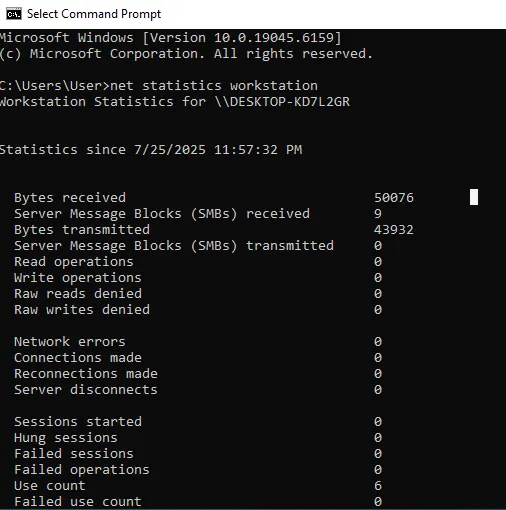
If the command returns no result, run:
systeminfoThen find the translated system boot time field.
3. Check Uptime in Task Manager
Task Manager is useful when you want a quick visual Windows uptime check.
- Press Ctrl + Shift + Esc.
- Open Performance.
- Select CPU.
- Find Up time.
The value normally uses this format:
days:hours:minutes:seconds
For example, 2:05:17:30 means Windows has been running for 2 days, 5 hours, 17 minutes, and 30 seconds.
Task Manager shows uptime. It does not show detailed restart history.
4. Why the Boot Time Looks Wrong
Fast Startup is a common reason the Windows boot time looks older than expected.
Fast Startup can save the Windows kernel session during shutdown. Because of this, the uptime may not reset after you turn the computer off.
Perform a Full Restart
Select Start → Power → Restart.
A restart performs a full boot cycle. It normally resets the boot timestamp and uptime.
Microsoft notes that Fast Startup does not apply when Restart is selected. See the Microsoft Fast Startup documentation.
Disable Fast Startup if Needed
- Open Control Panel.
- Go to Hardware and Sound → Power Options.
- Select Choose what the power buttons do.
- Select Change settings that are currently unavailable.
- Clear Turn on fast startup.
- Select Save changes.
The Fast Startup option may not appear when hibernation is disabled.
5. Check Restart History in Event Viewer
Use Event Viewer when you need previous startup, shutdown, or reboot events.
- Press Windows + R.
- Type
eventvwr.msc. - Press Enter.
- Open Windows Logs → System.
- Select Filter Current Log.
Useful Event IDs include:
- 12: Windows started.
- 13: Windows started shutting down.
- 1074: A user or process started a restart or shutdown.
- 41: Windows restarted without a clean shutdown.
- 6005: The Event Log service started.
- 6006: The Event Log service stopped normally.
- 6008: The previous shutdown was unexpected.
Do not rely on a single event. Check the event source, timestamp, and nearby entries.
For unexpected restart troubleshooting, see the Microsoft reboot event log guidance.
6. Check a Remote Computer
You can also check the Windows last boot time of another computer with PowerShell:
Get-CimInstance Win32_OperatingSystem -ComputerName "PC-NAME" |
Select-Object CSName, LastBootUpTime
Replace PC-NAME with the hostname of the remote computer.
Remote queries may require extra permissions. The target computer must also be reachable over the network.
7. Which Method Should You Use?
| Method | Best For |
|---|---|
| PowerShell | Exact current boot timestamp |
| CMD | System boot time from the command line |
| Task Manager | Quick Windows uptime check |
| Event Viewer | Windows restart history and shutdown investigation |
For most checks, PowerShell is the simplest method. Use Event Viewer when you need historical information.
Frequently Asked Questions
What is the fastest way to check Windows last restart time?
PowerShell is usually the fastest method:
(Get-CimInstance Win32_OperatingSystem).LastBootUpTimeHow do I check the boot time with CMD?
Run systeminfo | find "System Boot Time".
On a non-English Windows installation, run systeminfo without the filter.
Why does Task Manager show high uptime after shutdown?
Fast Startup can preserve the Windows kernel session during shutdown. Select Restart to perform a full boot cycle.
Which Event ID shows an unexpected shutdown?
Event ID 6008 records an unexpected previous shutdown. Kernel-Power Event ID 41 can also appear after an unclean restart.
Summary
For day-to-day troubleshooting, PowerShell is the method I use most often to check the Windows last restart time.
CMD is a useful alternative. Task Manager provides a quick uptime view. Use Event Viewer when you need Windows restart history or the cause of an unexpected reboot.
For more Windows troubleshooting guides, visit the SupportSolved Windows guides.
