
WinGet lets you update many Windows apps from Terminal, PowerShell, or Command Prompt.
Before you install updates, check which apps have a new version. Review the list and save your work.
WinGet may skip some apps. This is normal. Some programs use their own updater or do not have a matching WinGet package.
Quick Answer
Open Windows Terminal, PowerShell, or Command Prompt.
Check for app updates:
winget upgradeIf the list looks correct, run:
winget upgrade --allSave your work first. Some apps may close during the update. Windows may also ask for admin approval.
Video: Update Windows Apps with WinGet
This video shows how to check for updates and update supported apps with WinGet.
1. Check If WinGet Is Installed
Open Windows Terminal, PowerShell, or Command Prompt.
Run:
winget --versionIf WinGet is installed, you will see a version number.
WinGet is the Windows Package Manager. You can use it to find, install, and update supported apps.
You can also check the App Installer version:
(Get-AppxPackage Microsoft.DesktopAppInstaller).VersionSee the official Microsoft WinGet documentation for current requirements.
2. Check Available App Updates
Check the available updates before you install them.
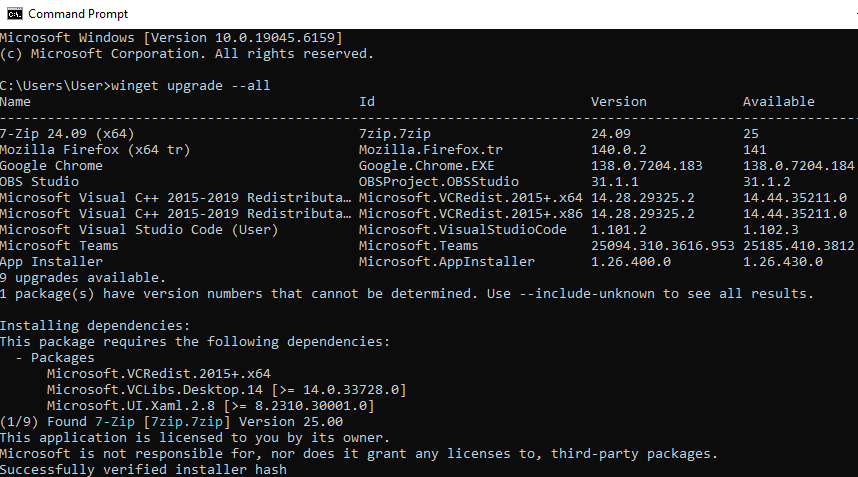
winget upgradeThe list can show:
- App name
- Package ID
- Installed version
- New version
- Package source
You can also run:
winget list --upgrade-availableCheck the app names and versions. Make sure the list is what you expect.
This check is useful on work computers. Some apps may need to stay on a fixed version.
3. Update All Supported Apps
After you review the list, start the update:
winget upgrade --allWinGet checks each supported package and starts its installer.
During the update, an installer may:
- Show a User Account Control prompt.
- Open an installer window.
- Ask you to close the app.
- Ask you to accept an agreement.
- Finish the update.
- Skip the package.
- Return an error.
You do not always need to run Terminal as administrator.
Windows can ask for admin approval when an installer needs it.
4. Useful WinGet Options
WinGet has options that change how an update runs.
| Option | What It Does |
|---|---|
--all |
Updates supported packages that have a new version. |
--silent |
Tries to run the installer without extra windows. |
--accept-package-agreements |
Accepts package agreements. |
--accept-source-agreements |
Accepts source agreements. |
--include-unknown |
Includes apps when the installed version is unknown. |
--include-pinned |
Includes packages with some types of pins. |
--open-logs |
Opens the WinGet log folder. |
See Microsoft’s WinGet upgrade documentation for the current options.
5. Why Does WinGet Skip Some Apps?
A skipped app does not always mean there is an error.
WinGet may skip an app because:
- It cannot match the app to a package.
- No newer version is available.
- The installed version is unknown.
- The package is pinned.
- The installer needs extra input.
- The app uses its own updater.
- The package does not match the installed system type.
Unknown Version
WinGet may know the app but not its installed version.
In that case, this option may help:
--include-unknownCheck the package ID and source first.
Pinned Apps
A pin can stop or limit an app update.
The following option can include some pinned packages:
--include-pinnedBe careful on work computers. Do not change an approved app version unless the update is allowed.
6. Update One App with WinGet
You do not need to update every app at once.
First, find the package ID:
winget upgradeThen update the app by its exact ID:
winget upgrade --id Microsoft.PowerToys --exact
The --exact option tells WinGet to use the exact package ID.
This helps avoid another package with a similar name.
7. Common WinGet Errors
winget Is Not Recognized
Update or reinstall Microsoft App Installer.
Then close Terminal and open it again.
Test:
winget --versionNo Applicable Upgrade Found
WinGet may not see a newer version for the app.
Check the package ID, installed version, source, and pin status.
Source Data Is Out of Date
Check the sources:
winget source listUpdate them:
winget source updateIf the default sources still do not work, you can reset them:
winget source reset --forceThe App Is Still Running
Save your work and close the app.
Some installers cannot update files while the app is open.
8. Check WinGet Logs
If an update fails, run:
winget --infoThe WinGet log folder is normally here:
%LOCALAPPDATA%\Packages\Microsoft.DesktopAppInstaller_8wekyb3d8bbwe\LocalState\DiagOutputDirOpen the newest log file.
Look for the app name, error code, installer result, or source error.
See Microsoft’s WinGet troubleshooting documentation for more details.
Frequently Asked Questions
What does winget upgrade all do?
It is used to update supported apps that WinGet can match to a newer package version.
Does WinGet update every app?
No. WinGet may skip unsupported, unmatched, pinned, or self-updating apps.
Should I run WinGet as administrator?
Not always. Windows can ask for admin approval when an installer needs it.
Can an app update require a restart?
Yes. Some apps or installers need a restart. Save your work before you update several apps.
Does WinGet replace Windows Update?
No. Keep using Windows Update for Windows updates, security fixes, drivers, and Microsoft system components.
Summary
Check the available app updates first.
Review the package names and versions before you start.
WinGet can update many supported Windows apps from one place.
Some apps may still need their own updater.
If an update fails, check the package source and WinGet logs.
After the updates, you can also check when Windows last completed a full boot with our Windows last restart time guide.
