
How to Clear System Storage on macOS Safely (Without Losing Data)
Clear system storage mac is a common issue on macOS when disk space suddenly fills up without a clear reason. However, macOS does not allow deleting System Data directly; therefore, the safest approach is reducing it by clearing cache files, removing Time Machine local snapshots, and using Apple’s built-in storage tools.
1. Clear System Storage Mac – Check Storage Usage
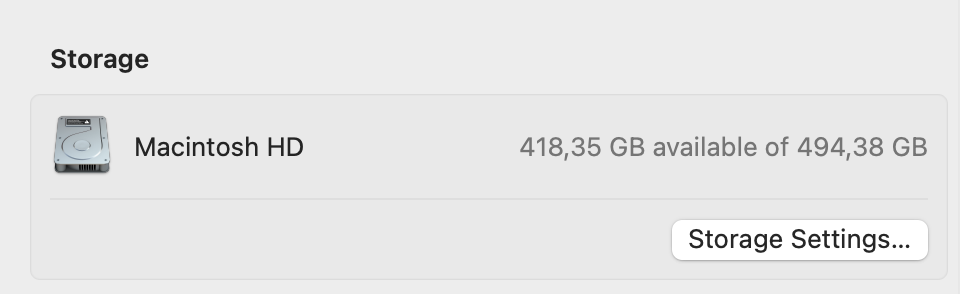
Before you clear system storage mac, check how much space is currently used. Go to Apple Menu → About This Mac → Storage and open Storage Settings….
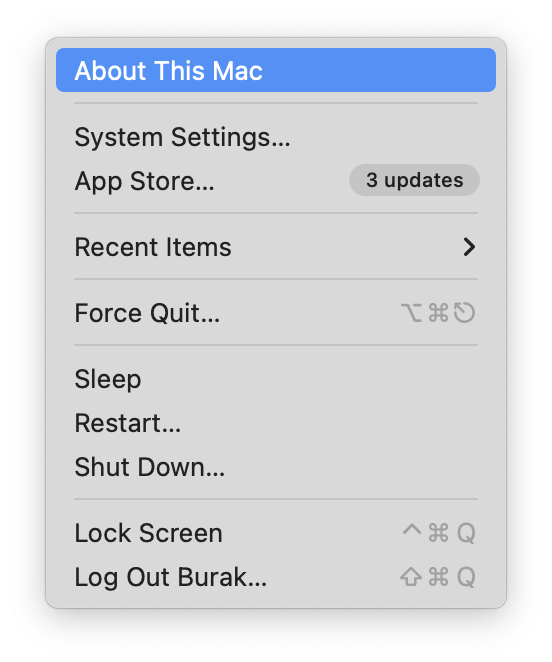
For example, you may see limited free space available. However, this screen gives you a baseline; therefore, you can compare results after cleanup.
2. Clear System Storage Mac Cache Files
Cache files store temporary data created by apps and the system. Over time, these files grow large; as a result, clearing them is one of the fastest ways to clear system storage mac safely.
- Close active apps such as browsers and editors.
- Open Finder and press Cmd + Shift + G.
- Enter
~/Library/Cachesand delete files inside subfolders (keep the folders). - Repeat the same steps for
/Library/Cachesusing an admin account.
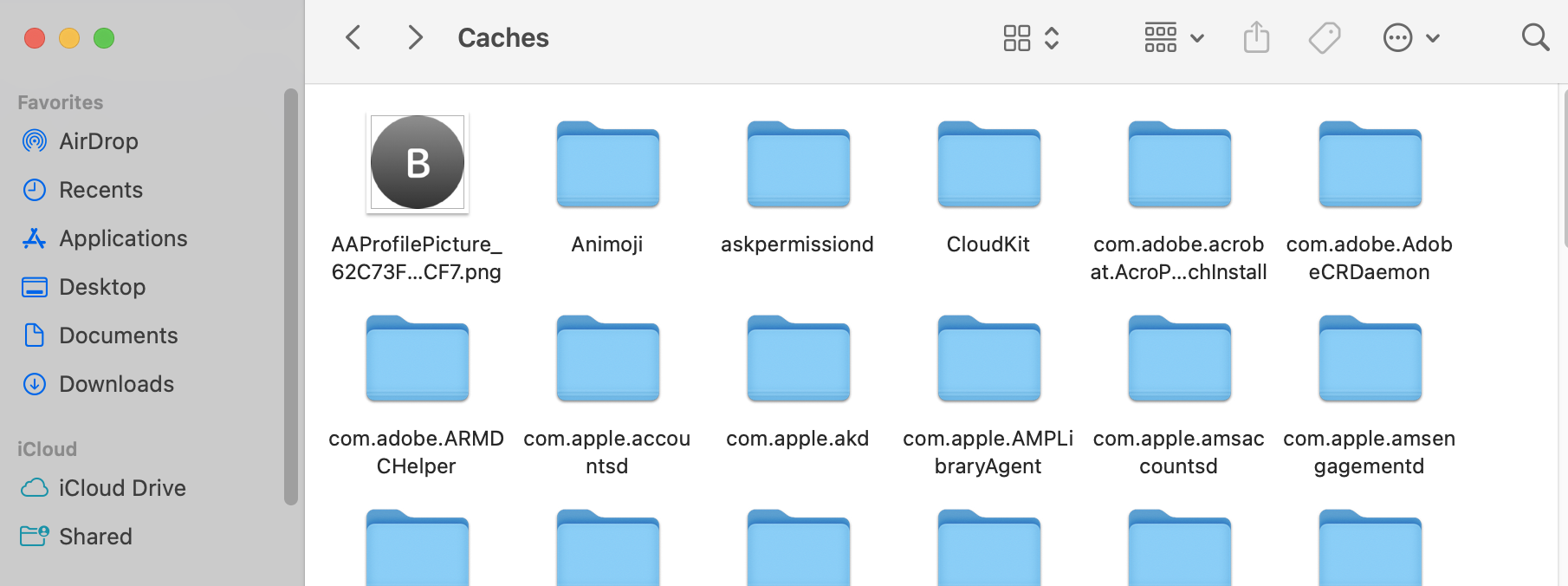
However, never delete anything inside /System.
Doing so may cause stability issues; therefore, limit cleanup strictly to cache folders.
3. Remove Time Machine Local Snapshots
In addition, Time Machine can store local snapshots on your disk. These snapshots may increase System Data size; however, macOS often removes them automatically when space is required.
tmutil listlocalsnapshots /After that, you can manually reduce their size:
sudo tmutil thinlocalsnapshots / 10000000000 4As a result, available storage may increase. Still, snapshots can reappear later if Time Machine remains enabled.
4. Use Apple’s Optimize Storage
Finally, Apple provides built-in tools to manage disk usage more efficiently. Go to System Settings → General → Storage and review the recommendations.
- Store in iCloud: Moves Desktop and Documents online.
- Optimize Storage: Removes watched media and old mail attachments.
- Empty Trash Automatically: Deletes items after 30 days.
- Reduce Clutter: Helps locate large unused files.
5. Clear System Storage Mac – Verify Free Space
Once you clear system storage mac, reopen Storage Settings… and review the updated values. However, storage numbers may fluctuate due to indexing and background processes.
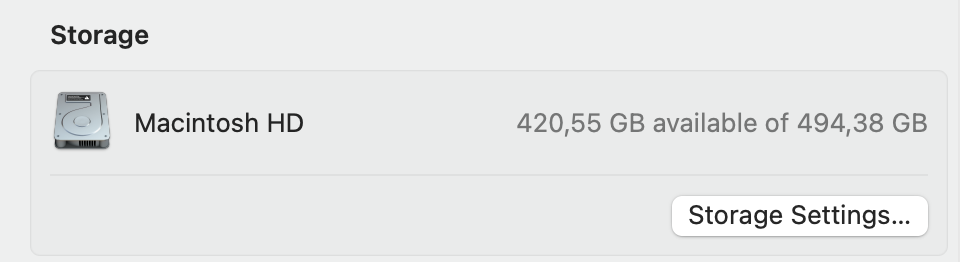
As a result, if available space increases compared to your first check, the cleanup was successful. For more guides, visit our macOS help section.
