
How to Disable Sticky Scroll in VS Code (Step-by-Step)
VS code sticky scroll keeps function or class headers pinned at the top of the editor while scrolling. Although useful for large files, many users find this behavior distracting. Fortunately, you can disable this feature completely in under one minute.
Disable VS Code Sticky Scroll from Settings
This is the fastest and recommended method. The change applies instantly and does not require restarting VS Code.
Turn off Sticky Scroll using the Settings UI
- Open Visual Studio Code.
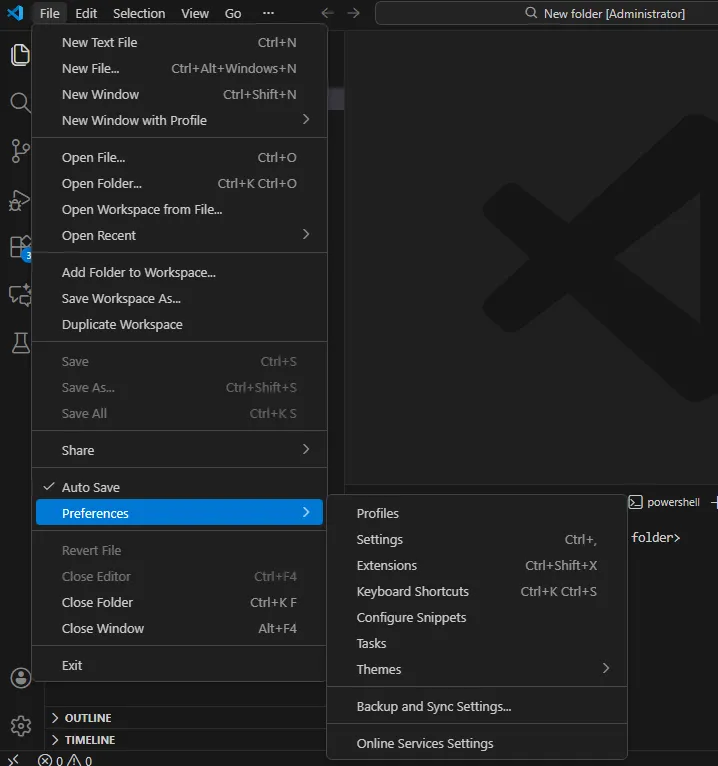
- Go to File > Preferences > Settings (Windows/Linux) or Code > Settings (macOS).
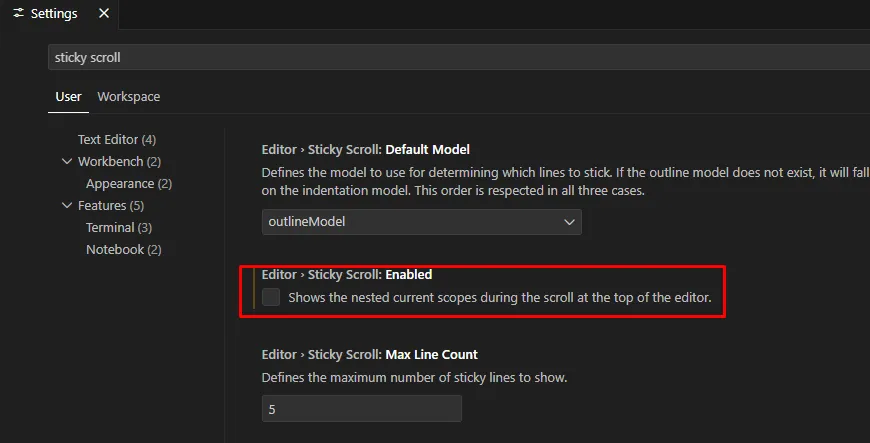
- In the Settings search bar, type sticky scroll.
- Disable Editor: Sticky Scroll.
- Scroll inside a file to confirm the pinned header is removed.
Disable Sticky Scroll using settings.json
If the toggle does not work due to profile sync or workspace overrides, disable VS code sticky scroll directly from the JSON configuration.
Turn off the pinned header via settings.json
- Press Ctrl + Shift + P (or Cmd + Shift + P on macOS).
- Select Preferences: Open User Settings (JSON).
- Add or update the following line:
"editor.stickyScroll.enabled": falseIf the sticky header is still visible after changing this value, restart VS Code to apply the override.
Why this behavior appears
This feature is enabled by default in newer VS Code versions to keep the current scope visible. However, for small files or fast scrolling, it often feels unnecessary.
Final checks if the issue continues
If pinned headers still appear, verify the following:
- Confirm whether you edited User or Workspace settings.
- Temporarily disable Settings Sync.
- Switch back to the default VS Code profile.
- Restart VS Code to clear cached UI state.
For a related fix, see: Reset VS Code settings safely. You can also reference the official VS Code settings documentation.
In short, disabling Editor: Sticky Scroll restores normal scrolling behavior in Visual Studio Code.
