
Windows Last Restart Time: CMD, PowerShell & Fixes (2026)
Checking the Windows last restart time is essential for troubleshooting system lag, verifying updates, or auditing server uptime. While Task Manager often provides misleading data due to “Fast Startup,” using CMD (systeminfo) or PowerShell ensures you get the real boot timestamp.
 Fastest CMD Method
For an instant result without waiting for system scans, use the net statistics command:
net statistics workstation
Look for the “Statistics since…” line at the top of the output.
1. Using “net statistics workstation” (Instant Check)
The net statistics command is a legacy tool that provides an instant timestamp of when the workstation service started, which occurs during the system boot process.
net statistics workstationThis is often preferred by sysadmins because it doesn’t have the “loading” delay associated with the systeminfo command.
2. Using systeminfo (The Professional Way)
If you need a complete system summary alongside the boot time, systeminfo is the best built-in tool. It pulls the specific “System Boot Time” field directly.
systeminfo | find "System Boot Time"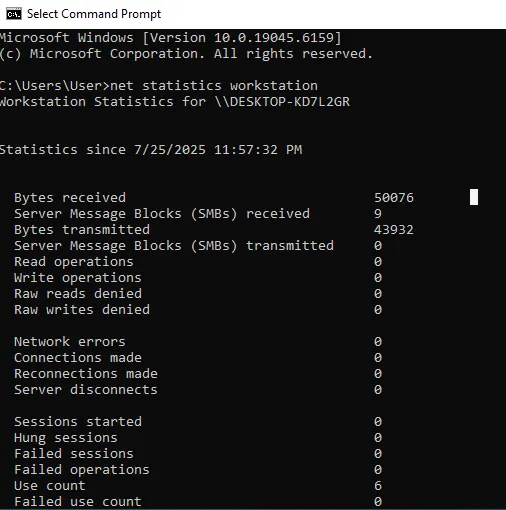
3. PowerShell: The Advanced Kernel Query
PowerShell provides the most precise data by querying the WMI layer. Use this for 100% accuracy:
(Get-CimInstance Win32_OperatingSystem).LastBootUpTimeWhy is Windows Showing the Wrong Last Restart Time?
If your PC shows a restart time from days ago even though you turned it off last night, it is due to Fast Startup. This “Hybrid Shutdown” saves the kernel state to the disk instead of fully closing it.
How to Fix (Disable Fast Startup)
- Go to Control Panel > Power Options.
- Select “Choose what the power buttons do”.
- Uncheck “Turn on fast startup” and save changes.
FAQ
Can I check restart history in Event Viewer?
Yes. Filter for Event ID 6005 to see a log of every time the system has started.
