
A Windows black screen after login with a visible mouse cursor often means Windows has signed in but the desktop shell or display stack has not loaded correctly. If Ctrl + Alt + Delete still works, restart Windows Explorer before moving to deeper recovery steps.
This guide is specifically for the post-login scenario. It does not cover a monitor with no signal, a black screen before the sign-in page, or a stop-code crash.
Quick Answer
For a Windows black screen after login:
- Press Windows + Ctrl + Shift + B once to reset the graphics driver.
- Press Ctrl + Shift + Esc to open Task Manager. If needed, use Ctrl + Alt + Delete → Task Manager.
- Find Windows Explorer and select Restart.
- If Windows Explorer is missing, select Run new task, type
explorer.exe, and press Enter. - If the desktop returns but the issue comes back after another login, continue with the recurring-problem checks below.
Video: Fix a Windows Black Screen After Login
This short walkthrough shows the graphics-driver reset, Task Manager, the Windows Explorer restart, and the explorer.exe fallback.
1. Confirm the Windows Black Screen Scenario
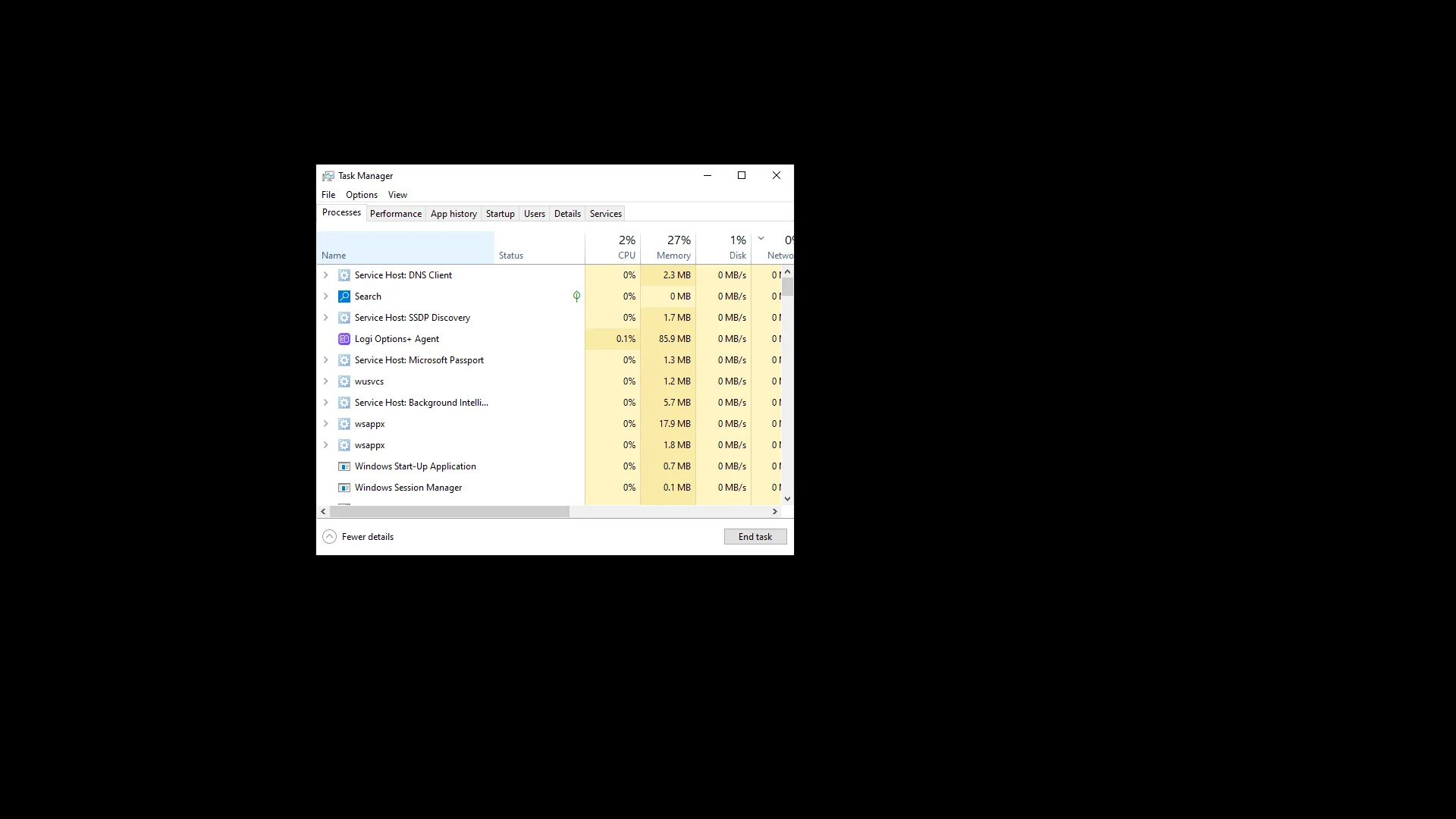
The Explorer method is most relevant when the sign-in screen worked normally, the screen turns black after entering your credentials, the cursor still moves, and the desktop, taskbar, and Start menu are missing.
Microsoft notes that a blank screen with a cursor can be caused by a stalled Windows process or a driver issue. A black screen around sign-in can also involve display output or a damaged user profile, so restarting Explorer is a diagnostic step rather than proof of the root cause.
Microsoft’s blank-screen troubleshooting guide covers startup, login, update, display, and hardware cases.
2. Reset the Graphics Driver
Press:
Windows + Ctrl + Shift + BWindows attempts to reset the graphics driver. You may hear a beep or see a short flicker. Microsoft includes this as an early blank-screen troubleshooting step.
If the desktop returns immediately, the display path may have been the issue. If the screen stays black but Task Manager works, continue.
3. Restart Windows Explorer from Task Manager
- Press Ctrl + Shift + Esc.
- If Task Manager does not appear, press Ctrl + Alt + Delete and select Task Manager.
- Open Processes.
- Find Windows Explorer.
- Right-click it and select Restart.
The taskbar and desktop can disappear briefly while the shell reloads. Restarting Explorer does not delete personal files.
4. Run explorer.exe If Explorer Is Missing
If Windows Explorer is not listed:
- Select Run new task in Task Manager.
- Enter
explorer.exe. - Press Enter.
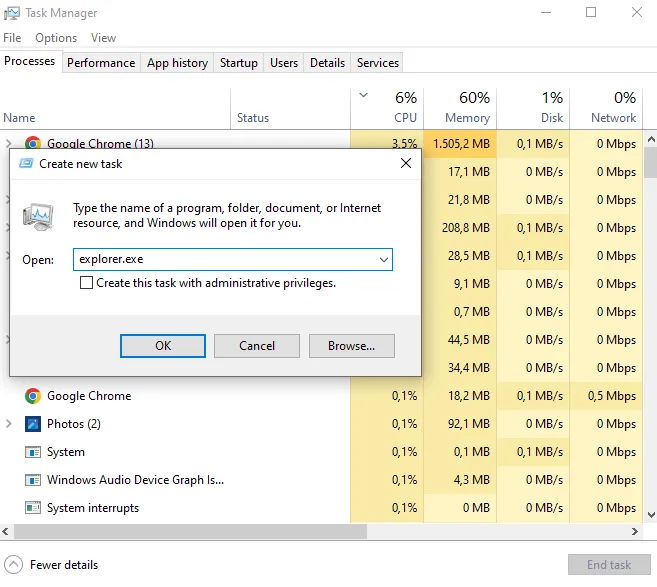
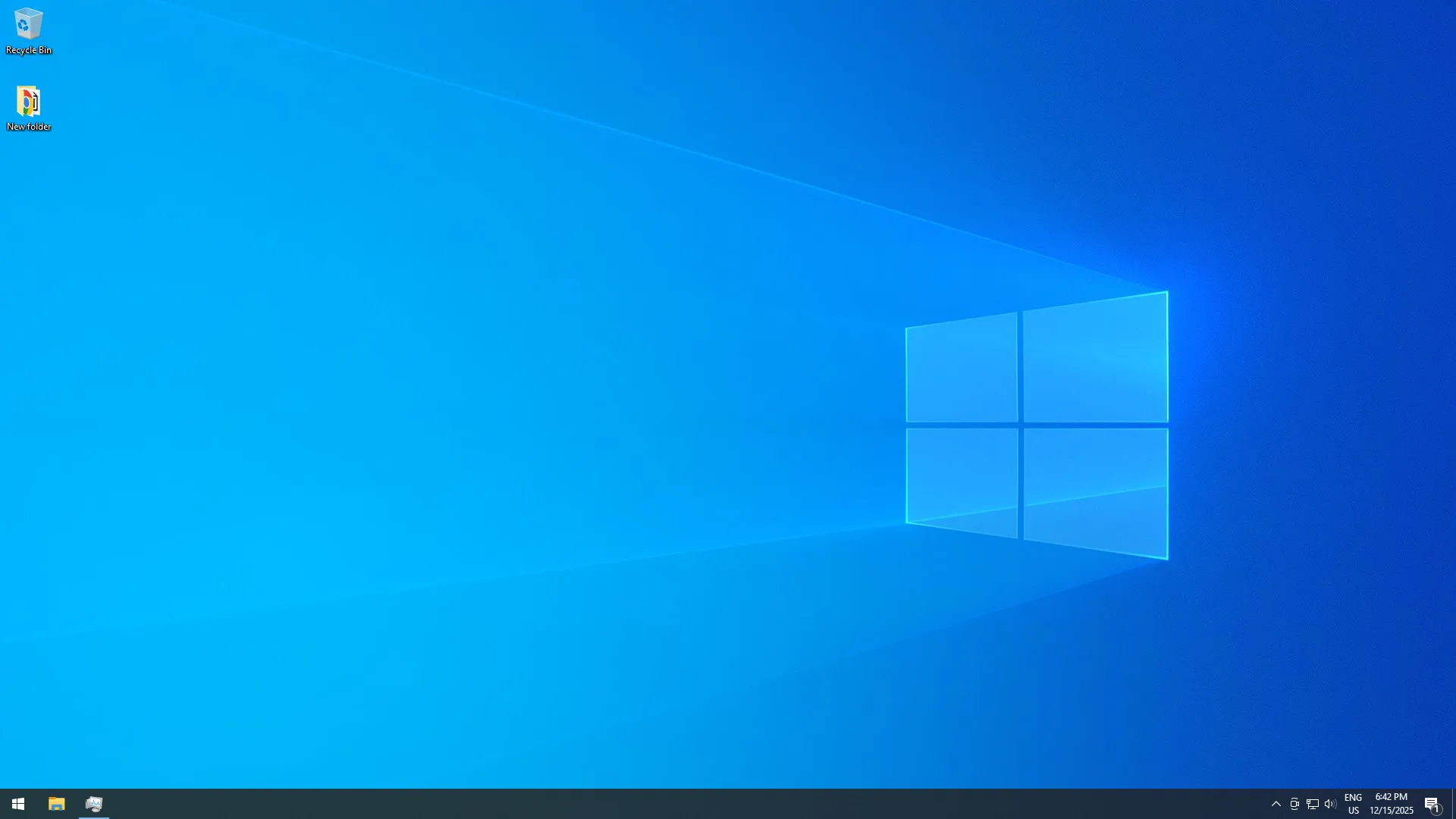
If the desktop returns, confirm that the Start menu, taskbar, and desktop icons work normally.
5. What If the Black Screen Keeps Coming Back?
A recurring Windows black screen after every login needs further investigation. Check for:
- A display driver problem, especially after an update
- A third-party startup application or service
- Corrupted Windows system files
- A damaged user profile
- An incorrect Windows shell configuration
- Explorer or userinit failures during sign-in
Microsoft’s current post-sign-in scenario guide recommends checking Explorer and userinit activity and, when needed, using a clean boot to isolate startup conflicts.
6. Repair Windows System Files
If Explorer repeatedly fails or other Windows components are unstable, open Terminal or Command Prompt as Administrator and run DISM first:
DISM.exe /Online /Cleanup-Image /RestoreHealthAfter DISM completes successfully, run:
sfc /scannowMicrosoft recommends running DISM before SFC when repairing damaged Windows components. See the official DISM and SFC guidance.
7. Use Safe Mode or a Clean Boot
If Windows works normally in Safe Mode, a third-party driver, service, startup program, or shell integration becomes more likely. When the normal desktop is usable enough for controlled testing, a clean boot can help isolate background conflicts.
Microsoft’s clean boot procedure starts Windows with essential services and lets you re-enable third-party items systematically.
8. Check the Winlogon Shell Value Only If Needed
For a recurring post-login Windows black screen, Microsoft also recommends checking the Winlogon shell configuration.
HKEY_LOCAL_MACHINE\SOFTWARE\Microsoft\Windows NT\CurrentVersion\WinlogonThe Shell value should normally be:
explorer.exeMicrosoft documents this check in its black screen after sign-in scenario guide.
For related troubleshooting, see how to check the last Windows restart time.
Frequently Asked Questions
Is restarting explorer.exe safe?
Yes. It reloads the Windows shell, taskbar, Start menu, and File Explorer interface. It does not delete personal files.
Why is the screen black but the cursor still moves?
Windows may still be running while the shell, graphics driver, profile, or another sign-in component has stalled. A visible cursor alone does not prove Explorer is the cause.
What if Task Manager does not open?
Try Ctrl + Alt + Delete. If the security screen also does not appear, move to Safe Mode or Windows Recovery troubleshooting instead of repeatedly launching explorer.exe.
Does this fix every Windows black screen?
No. This article targets the post-login case where Windows is responsive and the desktop is missing. No-signal, pre-login, hardware, boot-device, and stop-code problems require different troubleshooting.
Summary
For a Windows black screen after login with a visible cursor, reset the graphics driver, open Task Manager, and restart Windows Explorer. If Explorer is missing, run explorer.exe manually.
If the desktop returns only temporarily, investigate display drivers, startup software, system files, the user profile, and the Winlogon shell rather than repeating the workaround indefinitely.
