
Siri not responding to Hey Siri consistently was a problem I experienced on my iPhone. Siri would sometimes answer normally, but at other times I would make a voice request and get no spoken response.
In my case, the problem stopped after I changed Siri Responses from Automatic to Prefer Spoken Responses. After the change, spoken replies became more consistent during normal use and while testing Siri from the Lock Screen.
Quick Answer
If Siri activates but does not always answer out loud, try this setting:
- Open Settings.
- Select Apple Intelligence & Siri.
- Tap Siri Responses.
- Select Prefer Spoken Responses.
- Test Siri again with a voice request.
My iPhone was previously using Automatic. Changing this option fixed the inconsistent spoken replies for me.
Video: Fix Siri Not Responding to Hey Siri
This short walkthrough shows how to open Siri Responses on iPhone and change Automatic to Prefer Spoken Responses.
1. Why Can Siri Stay Silent on iPhone?
A voice request can reach Siri even when you do not hear an audible answer. The response behavior depends partly on the option selected under Siri Responses.
When Automatic is selected, the device can determine when an audible reply should be used. This may feel inconsistent if you expect Siri to speak after every request.
That was the behavior I saw on my own device. Instead of resetting Siri or changing several unrelated settings, I first tested the available response option.
2. Fix Siri Not Responding to Hey Siri on iPhone
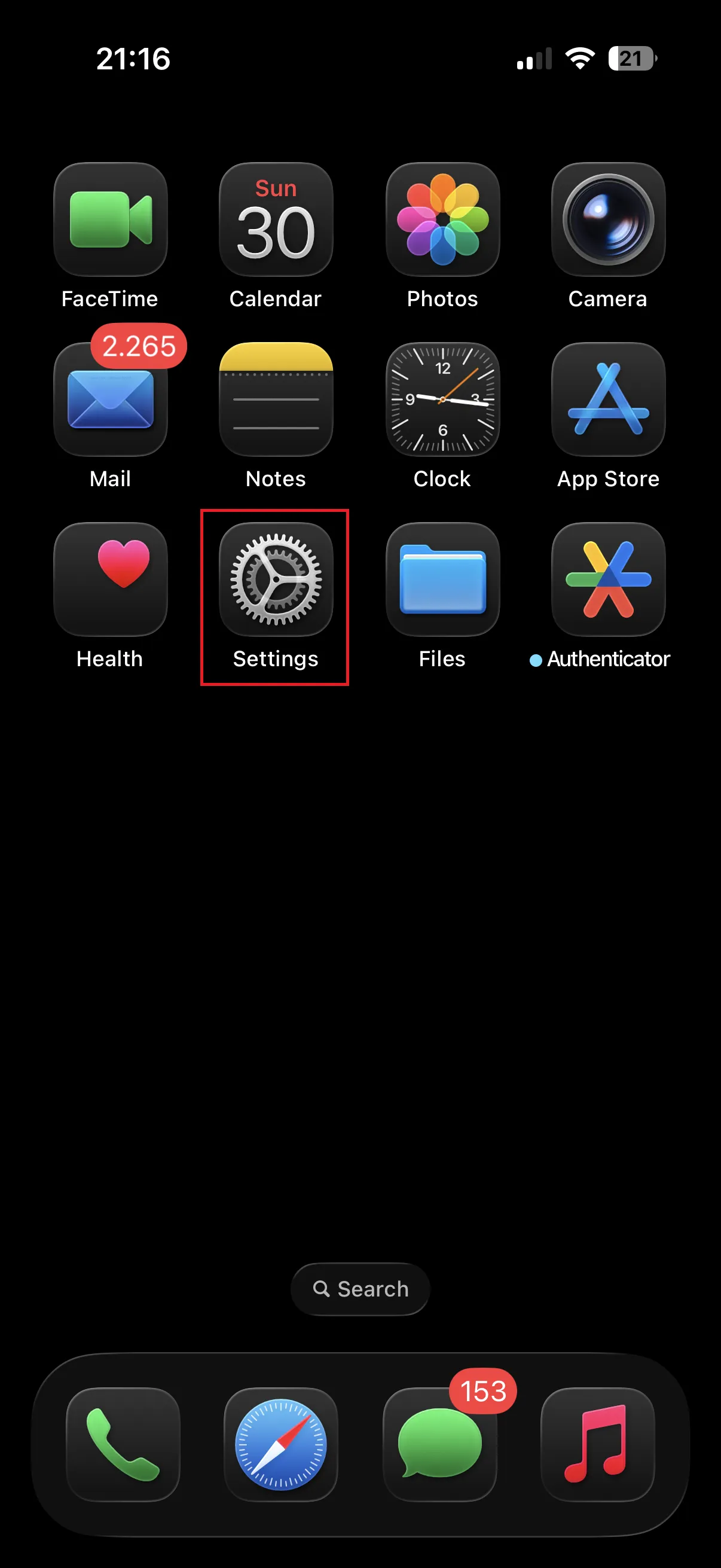
Step 1: Open Settings
Open the Settings app on your iPhone.
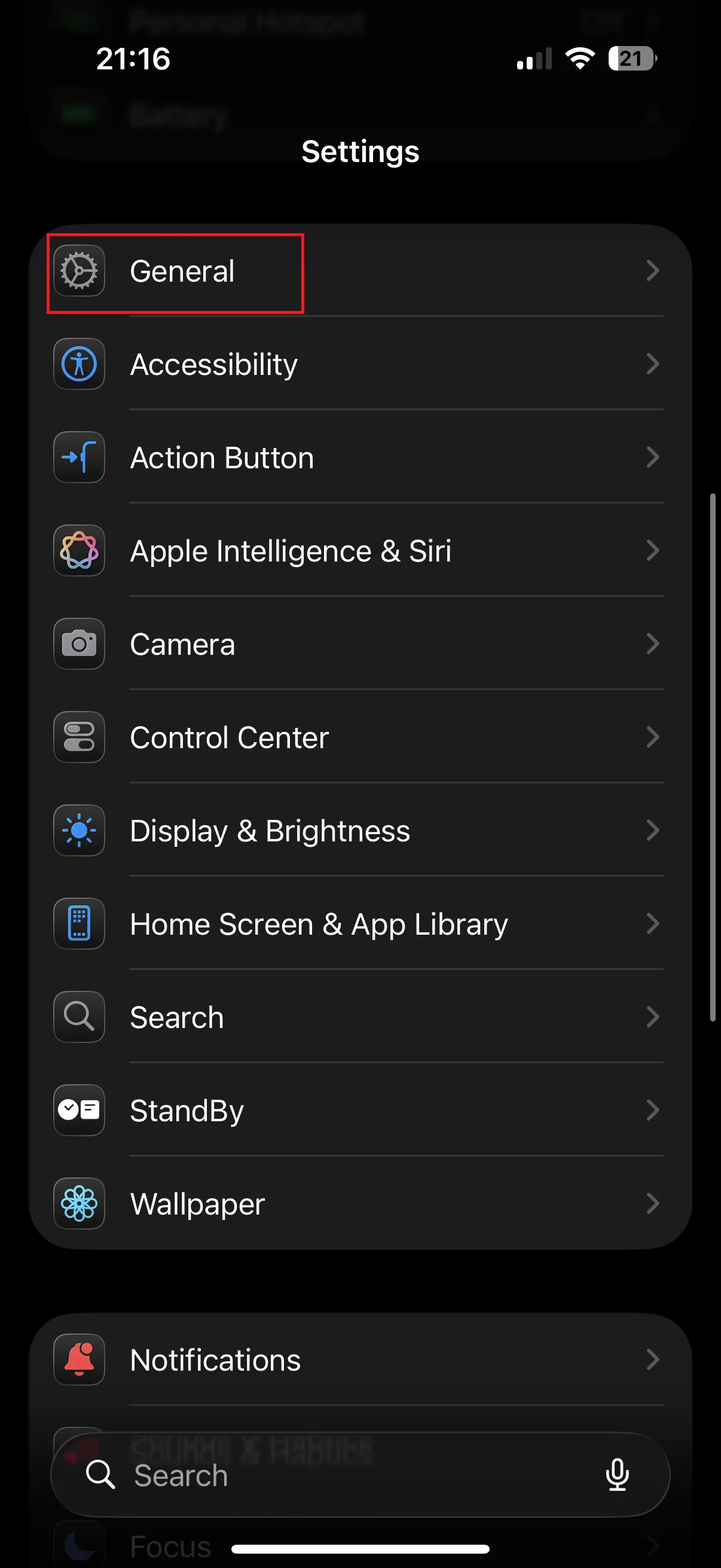
Step 2: Open Apple Intelligence & Siri
Scroll through Settings and select Apple Intelligence & Siri.
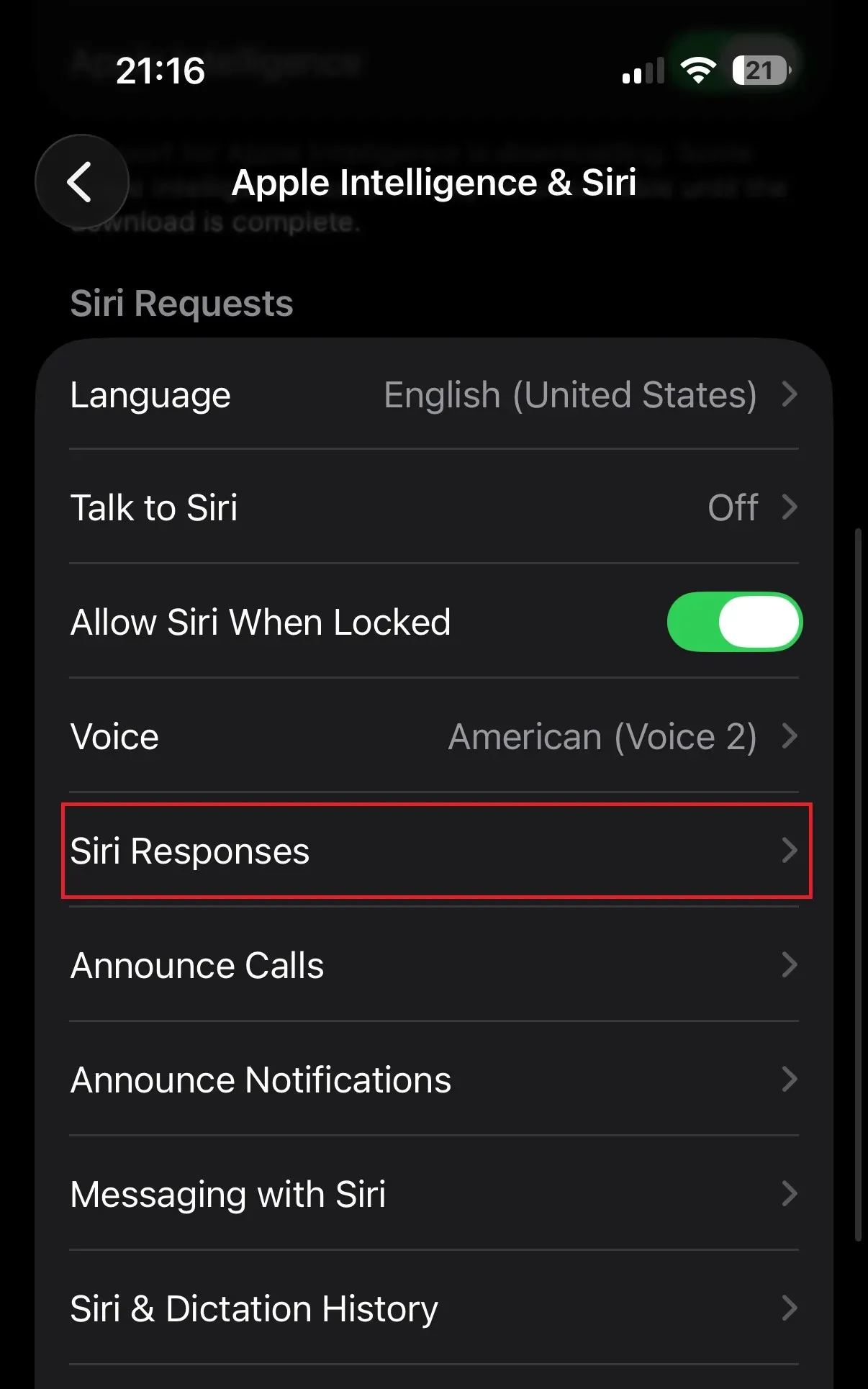
Step 3: Open Siri Responses
Find and tap Siri Responses. This section controls how Siri provides audible feedback.
Step 4: Check the Automatic Option
Before the fix, my phone was using Automatic. With this configuration, the system determines when Siri should answer aloud.
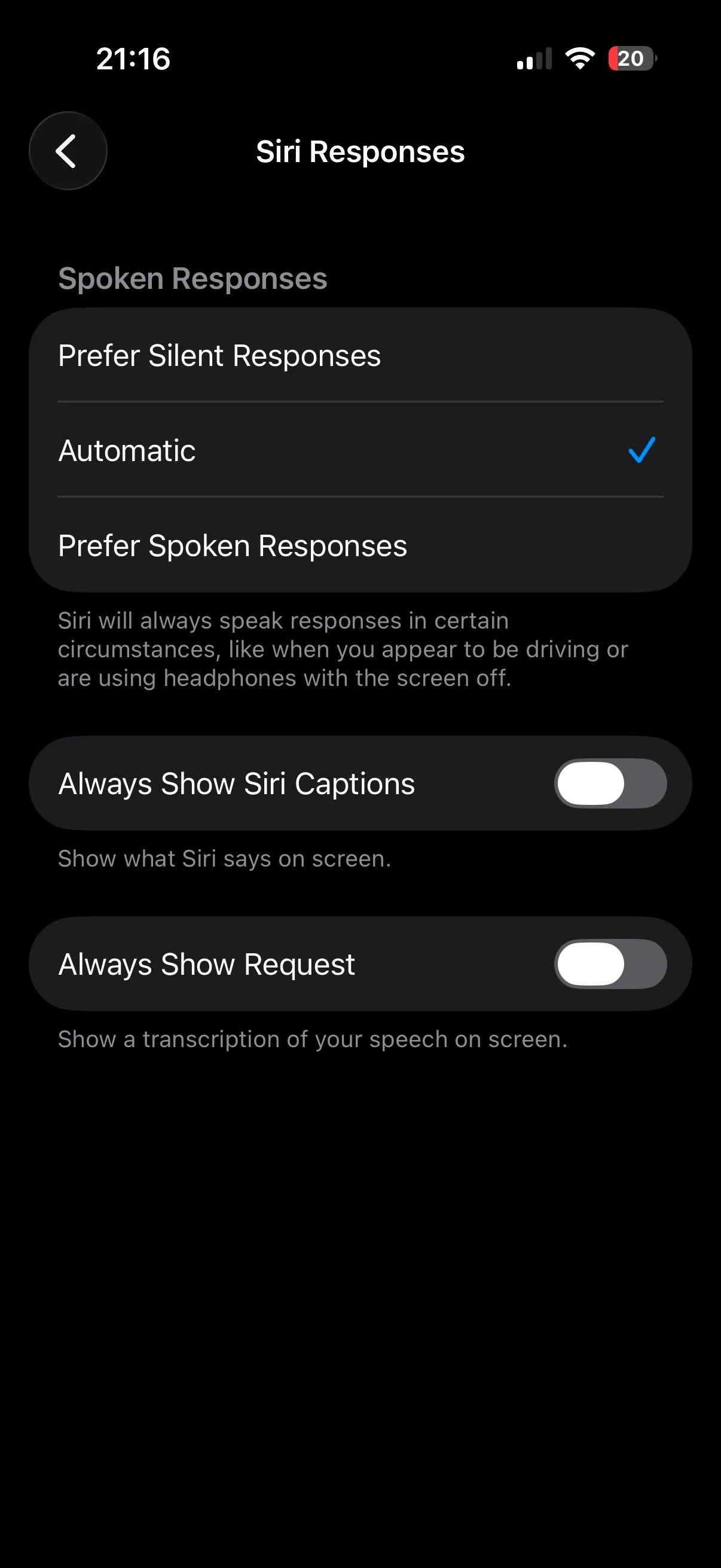
Step 5: Select Prefer Spoken Responses
Select Prefer Spoken Responses instead of Automatic.
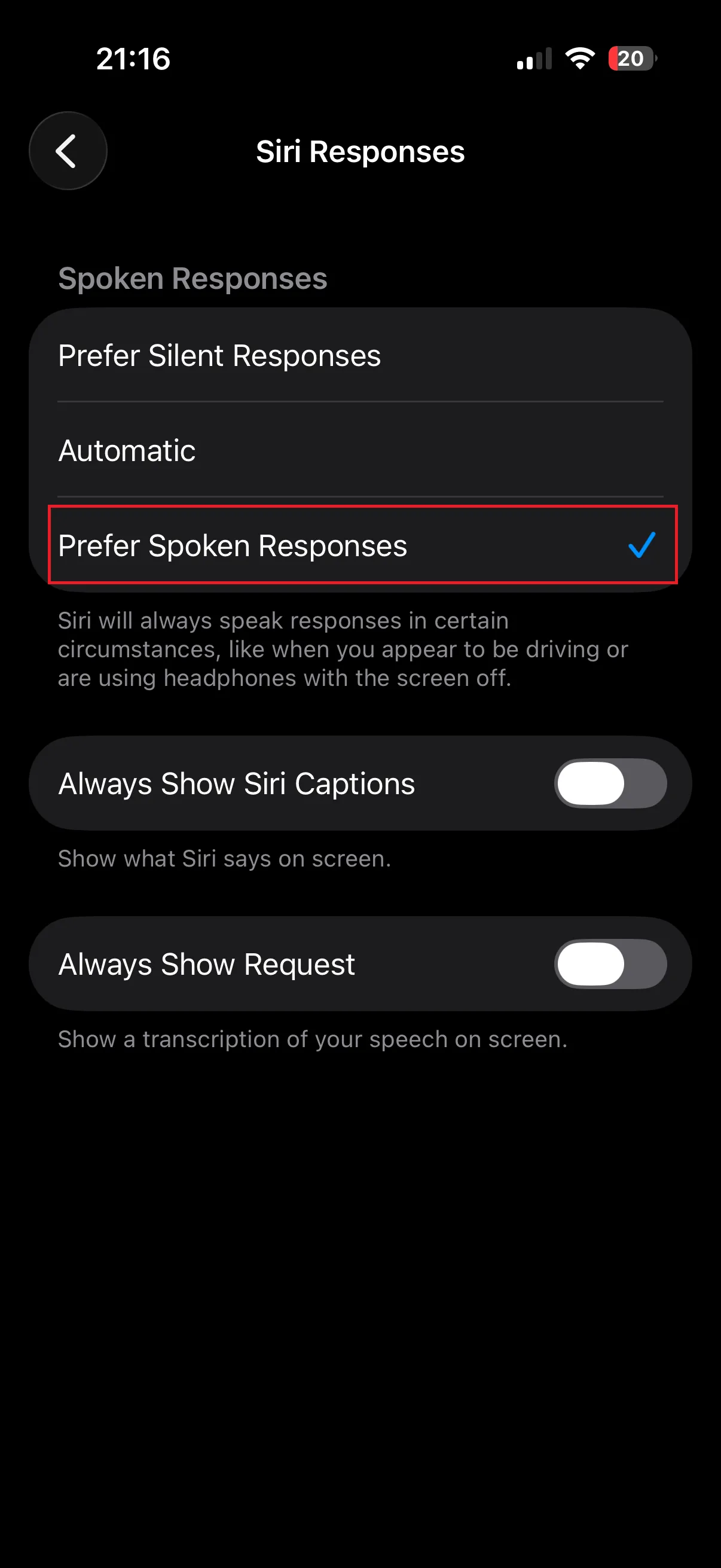
I tested Siri again immediately after making the change. The audible response behavior became consistent on my device without restarting or resetting the phone.
3. What Does Prefer Spoken Responses Do?
This option tells Siri that you prefer an audible answer rather than allowing the system to decide automatically when speech should be used.
Apple documents the same troubleshooting path in its official Siri troubleshooting guide. Apple specifically recommends opening Apple Intelligence & Siri → Siri Responses and selecting the spoken-response option when you cannot hear Siri.
This is important because Siri not speaking and Siri failing to detect your voice are not necessarily the same problem. One concerns the reply behavior; the other concerns activation or voice recognition.
4. Check Hey Siri Activation If There Is No Reaction
If there is no Siri interface, animation, or reaction at all when you speak, check voice activation instead of repeatedly changing the response option.
Go to:
Settings → Apple Intelligence & Siri → Talk to Siri
Make sure the option for “Siri” or “Hey Siri” is enabled. Apple explains these activation options in the official iPhone Siri activation guide.
If voice activation is already enabled but the assistant still cannot hear you, test the microphone with Voice Memos or during a phone call. A microphone or audio-input problem requires different troubleshooting.
5. More Apple Troubleshooting
If you also use a Mac, see the SupportSolved guide for fixing Safari Inspect Element when it is missing.
You can also browse the SupportSolved macOS troubleshooting section for more Apple-related fixes and configuration guides.
Frequently Asked Questions
Why does Siri sometimes stay silent after a voice request?
The response preference may be set to Automatic. In that mode, the device can determine when an audible answer should be used. Selecting the spoken-response preference may provide more consistent audio feedback.
What if iPhone Siri is not responding at all?
Check Talk to Siri first. If voice activation is disabled, changing how audible replies are handled will not enable Hey Siri detection.
Does this setting make Siri hear my voice better?
No. It changes how Siri answers after receiving a request. It does not increase microphone sensitivity or repair microphone hardware.
Do I need to restart the iPhone after changing the option?
I did not need to restart my device. The new response preference could be tested immediately after selecting it.
Should I reset Siri before trying this?
Not for this specific symptom. Checking the response preference is a simpler first step when Siri receives requests but does not consistently answer aloud.
Summary
My iPhone was using the Automatic response option when Siri’s audible replies became inconsistent. Changing it to Prefer Spoken Responses solved the behavior in my testing.
The path is Settings → Apple Intelligence & Siri → Siri Responses. If the assistant does not activate at all, check Talk to Siri and microphone functionality separately.
