
If your iPhone Camera keeps opening when you swipe left on the Lock Screen, you can turn that gesture off in Settings. To disable Lock Screen Camera swipe on iPhone, open the Camera settings and switch off Lock Screen Swipe to Open Camera.
This only removes the swipe-left shortcut from the Lock Screen. It does not disable the Camera app, so you can still open and use the Camera normally.
Quick Answer
To stop the Camera from opening when you swipe left on the Lock Screen:
- Open Settings.
- Tap Camera.
- Scroll down to Lock Screen Swipe to Open Camera.
- Turn the option off.
That’s it. The change takes effect immediately.
How to Disable Lock Screen Camera Swipe on iPhone
Follow these steps to turn off the swipe-left Camera shortcut from the Lock Screen.
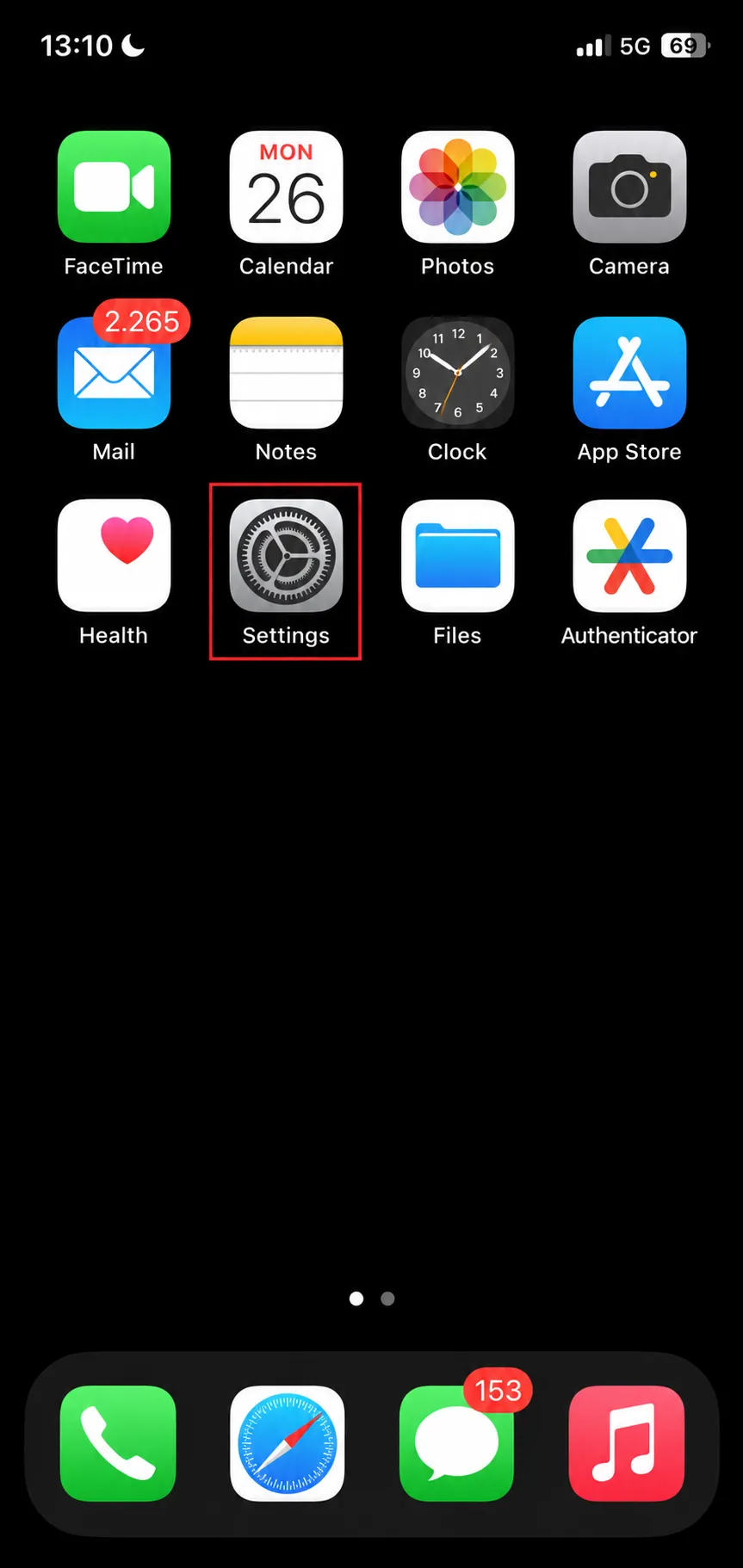
Step 1: Open Settings
Open the Settings app on your iPhone.
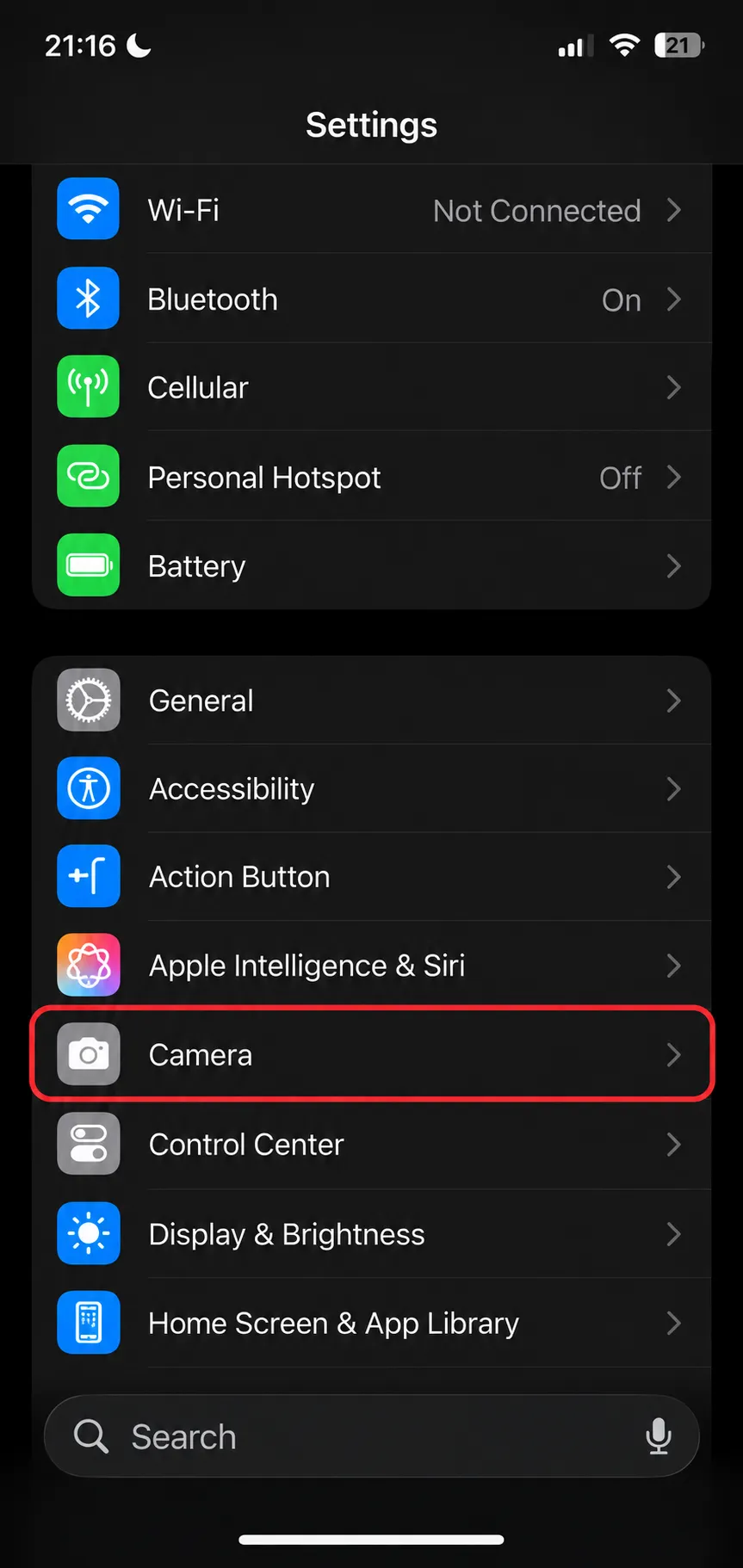
Step 2: Open Camera Settings
Scroll down and tap Camera.
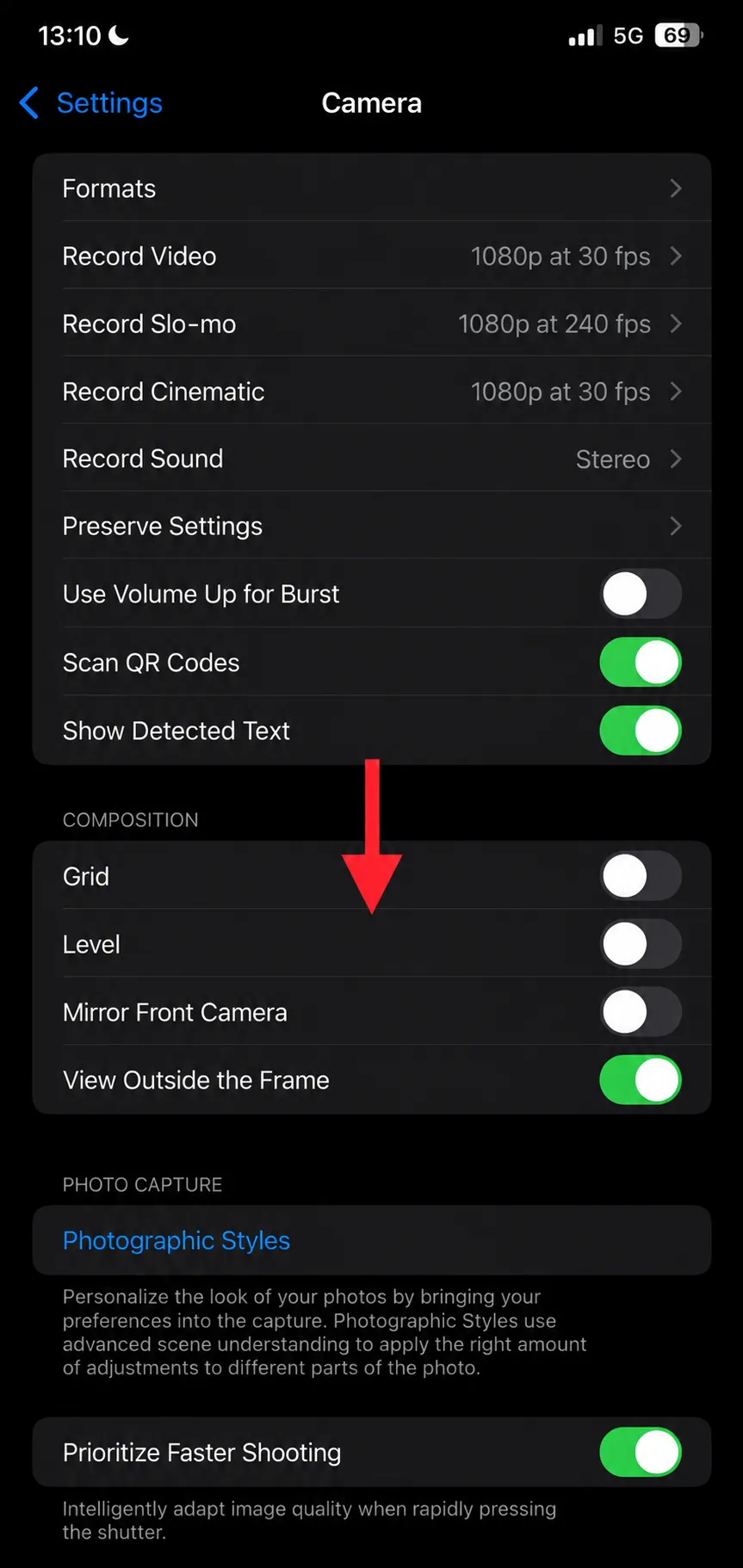
Step 3: Scroll Down
Scroll toward the bottom of the Camera settings page.
Step 4: Find Lock Screen Swipe to Open Camera
Look for Lock Screen Swipe to Open Camera. This is the option that controls whether a left swipe from the Lock Screen opens the Camera.
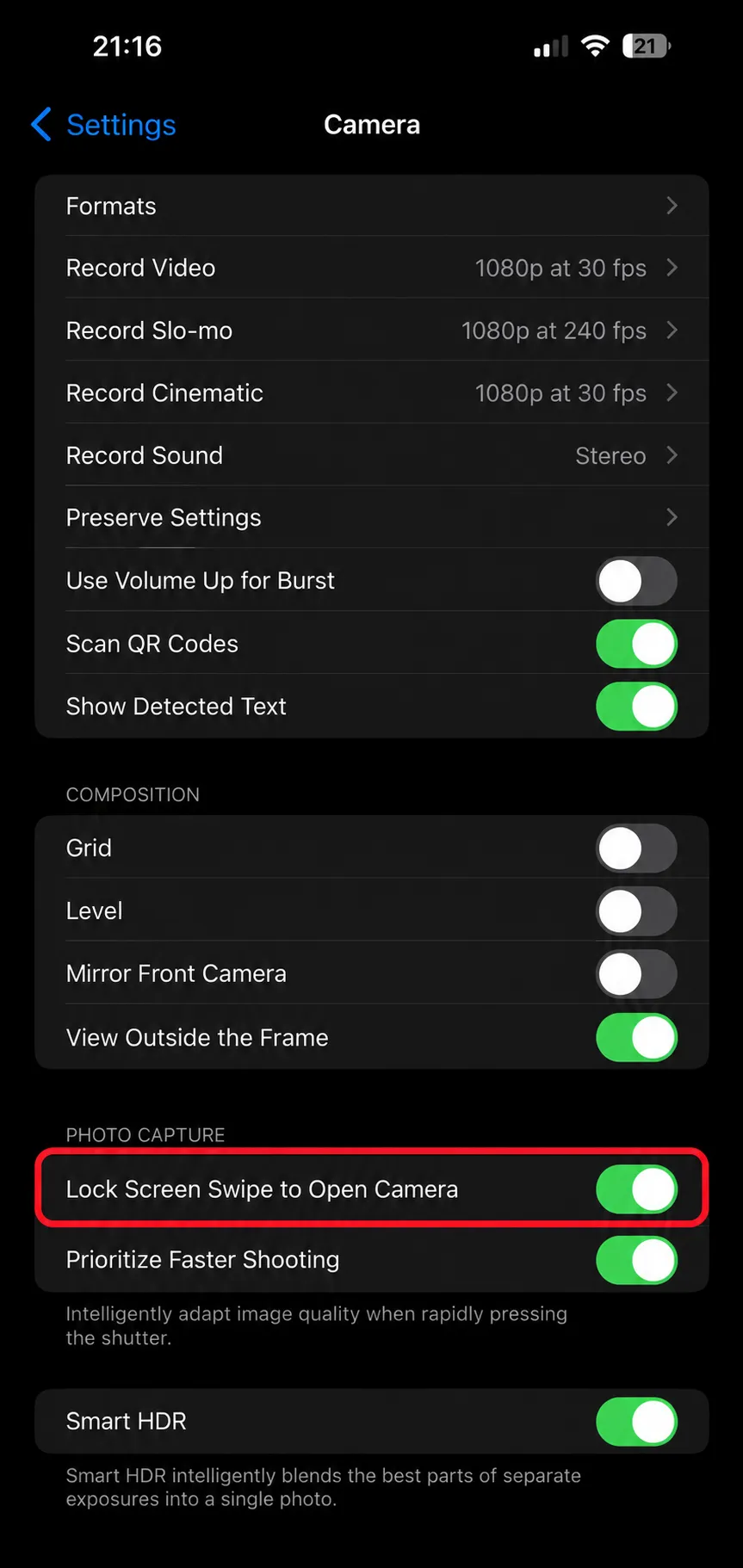
Step 5: Turn the Option Off
Tap the switch next to Lock Screen Swipe to Open Camera so that it is turned off.
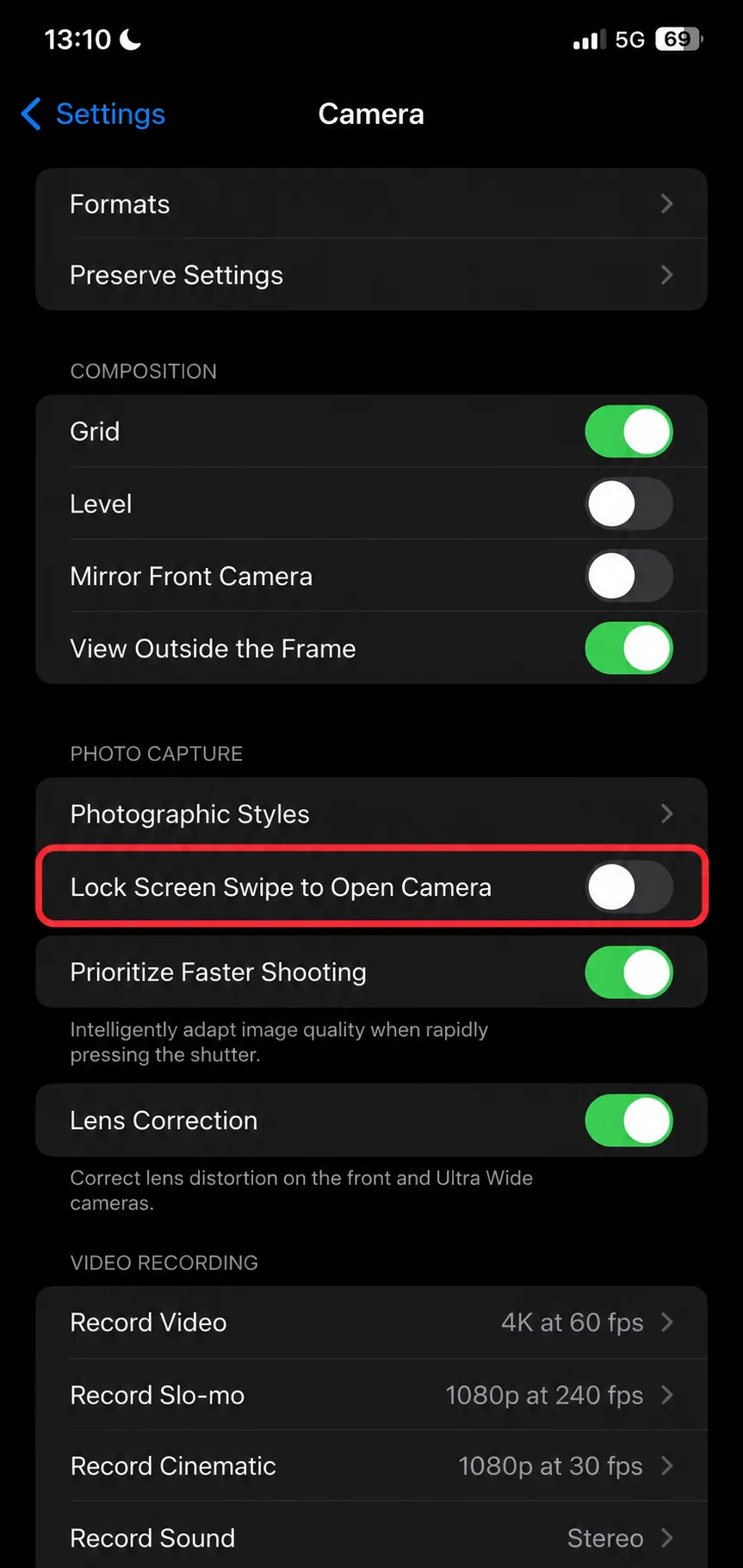
Once it is off, lock your iPhone and swipe left to test it. The Camera should no longer open from that gesture.
What Does Lock Screen Swipe to Open Camera Do?
The setting controls one specific shortcut: swiping left while your iPhone is on the Lock Screen.
With the option enabled, that gesture opens the Camera immediately. This is useful when you want to take a photo quickly, but it can also cause the Camera to open by accident.
Turning the option off removes that gesture without changing anything else about the Camera app.
Lock Screen Swipe to Open Camera Option Missing?
If you do not see the option under Camera settings, check the version of iOS installed on your iPhone.
The setting was introduced in iOS 26.1, so it may not appear if your device is running an earlier version.
You can check your installed version here:
Settings → General → About → iOS Version
To check for an available update:
Settings → General → Software Update
For more details about iOS 26 updates, see Apple’s official iOS 26 update documentation .
Frequently Asked Questions
How do I stop the Camera from opening when I swipe left?
Open Settings → Camera, find Lock Screen Swipe to Open Camera, and turn the option off.
Why can’t I find Lock Screen Swipe to Open Camera?
Check that your iPhone is running iOS 26.1 or later. You can see the installed version under Settings → General → About.
Does turning this off disable the Camera?
No. It only removes the swipe-left shortcut from the Lock Screen. You can still use the Camera app as usual.
Do I need to restart my iPhone?
No. The setting changes immediately, so you can test it as soon as you turn it off.
Can I turn the Camera swipe back on later?
Yes. Go back to Settings → Camera and enable Lock Screen Swipe to Open Camera again.
More Apple Troubleshooting
For more Apple-related fixes, see our Safari Inspect Element troubleshooting guide or browse the SupportSolved macOS troubleshooting section .
Summary
To disable Lock Screen Camera swipe on iPhone, open Settings → Camera and turn off Lock Screen Swipe to Open Camera.
The change is immediate and only affects the Lock Screen gesture. Your Camera app will continue to work normally.
