
VS Code sticky scroll keeps the current class, function, method, or other code scope pinned at the top of the editor while you move through a file. It can be useful in long source files, but it also reduces the visible editing area and may feel distracting on smaller screens.
You can disable the editor feature from Settings or by adding one line to settings.json. If the pinned header remains visible, check whether a workspace, profile, remote environment, or language-specific setting is overriding the user setting.
Quick Answer
To disable VS Code sticky scroll:
- Open Visual Studio Code.
- Press Ctrl + , on Windows or Linux, or Command + , on macOS.
- Search for sticky scroll.
- Clear the Editor: Sticky Scroll Enabled checkbox.
The equivalent JSON setting is:
"editor.stickyScroll.enabled": falseThe change normally applies immediately. A restart is useful only when the visible behavior does not update or another settings scope is involved.
1. Disable VS Code Sticky Scroll from Settings
The Settings interface is the safest method because it edits the correct preference without requiring manual JSON formatting.
- Open Visual Studio Code.
- Open Settings:
- Windows or Linux: File → Preferences → Settings
- macOS: Code → Settings → Settings
- Keyboard: Ctrl + , or Command + ,
- Enter sticky scroll in the Settings search box.
- Find Editor: Sticky Scroll Enabled.
- Clear the checkbox.
- Return to a long code file and scroll to confirm that the pinned scope header has disappeared.
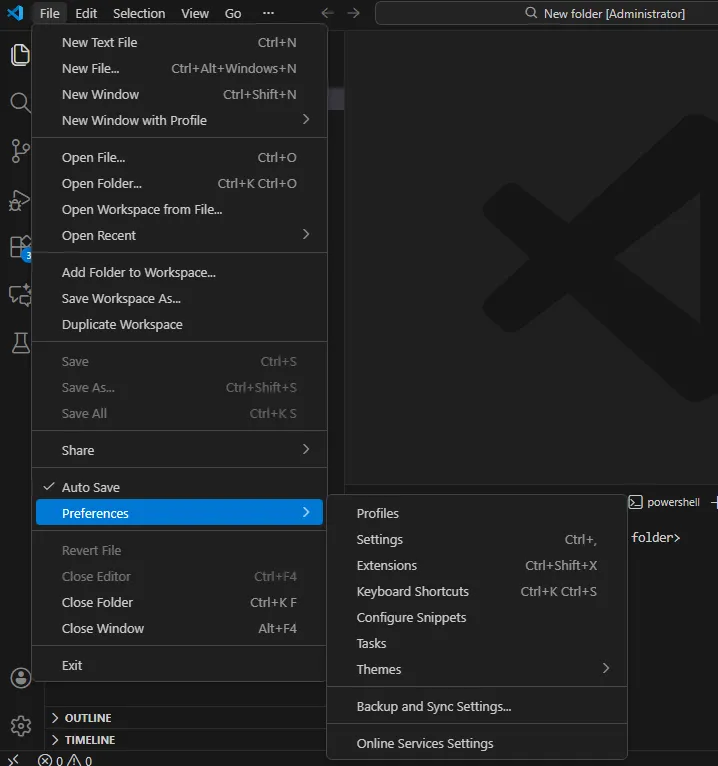
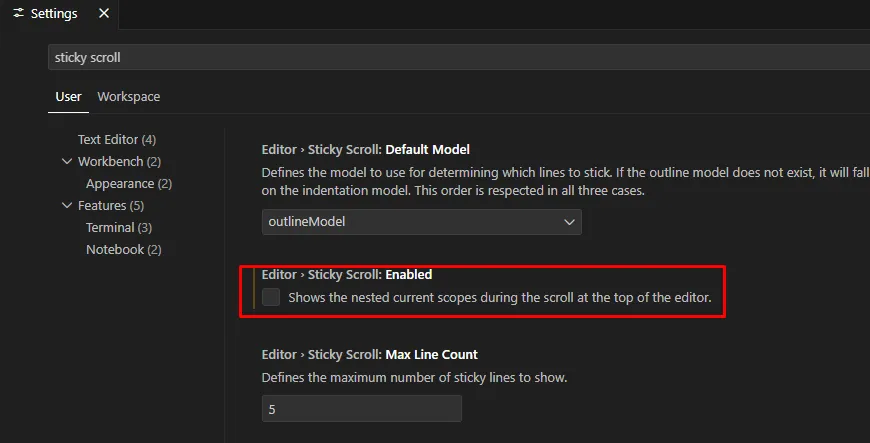
Disabling this option removes the pinned code scopes from the editor. It does not disable breadcrumbs, code folding, the Outline view, or symbol navigation.
2. Disable Sticky Scroll in settings.json
Use settings.json when you manage settings as code, need to confirm the exact value, or want to apply the preference through a configuration file.
- Press Ctrl + Shift + P or Command + Shift + P.
- Run Preferences: Open User Settings (JSON).
- Add or update this property:
"editor.stickyScroll.enabled": falseWhen the file already contains other settings, separate properties with a comma. Do not replace the complete file with one line. A valid example is:
{
    "editor.minimap.enabled": true,
    "editor.stickyScroll.enabled": false
}
The official Visual Studio Code settings documentation explains the Settings editor, JSON configuration, and different settings scopes.
3. Check User, Workspace, Profile, and Remote Settings
A VS Code preference can be defined in more than one place. When the VS Code sticky scroll value appears to change by project or computer, inspect these scopes:
- User: Applies to the current VS Code profile across projects.
- Workspace: Applies only to the open project or multi-root workspace.
- Folder: Applies to one folder in a multi-root workspace.
- Remote: Applies while connected through SSH, WSL, or a development container.
- Profile: A separate profile can contain a different value.
- Language-specific: A setting block can apply only to languages such as Python, JavaScript, or C#.
In the Settings interface, switch between the User and Workspace tabs and search for the setting. If the workspace intentionally enables it, remove the workspace value instead of repeatedly changing the user preference.
A project-level value can also appear in:
.vscode/settings.jsonDo not delete the entire workspace settings file. Remove or correct only the related property after confirming that the project does not require it.
4. Editor Sticky Scroll and Explorer Sticky Scroll Are Different
The VS Code sticky scroll setting in this guide controls pinned code scopes inside the editor. If the sticky item appears in the Explorer file tree rather than above the code, it is a different interface feature.
| Location | What Remains Pinned | Setting to Search |
|---|---|---|
| Code editor | Classes, methods, functions, and scopes | Editor: Sticky Scroll Enabled |
| Explorer tree | Parent folders while scrolling the file list | Search Settings for tree sticky scroll |
Identify where the pinned element appears before changing settings. Turning off editor Sticky Scroll does not necessarily change the behavior of tree views or other interface components.
5. Fix VS Code Sticky Scroll When It Stays Enabled
- Check the active scope: Compare User and Workspace values.
- Inspect workspace JSON: Open
.vscode/settings.jsonand search forstickyScroll. - Check the active profile: Confirm that you edited the profile currently in use.
- Check remote settings: Repeat the search while connected to WSL, SSH, or a development container.
- Check language-specific blocks: Search the JSON files for sections such as
"[python]"or"[javascript]". - Reload the window: Run Developer: Reload Window from the Command Palette.
- Identify the correct feature: Confirm that the pinned item is in the editor rather than Explorer or another view.
Settings Sync normally synchronizes user preferences rather than acting as a separate project override. Disabling Sync should not be the first troubleshooting step. Check the active scope and profile first.
When several unrelated settings are damaged or keep returning, use the SupportSolved guide to reset VS Code settings safely. A full reset should remain the last step because it can remove unrelated preferences, profiles, keybindings, and workspace behavior.
When the installed application itself needs updating, the SupportSolved WinGet upgrade guide shows how to review and update Windows applications from the command line.
Frequently Asked Questions
What does VS Code sticky scroll do?
It keeps the current code scope visible at the top of the editor while you scroll through a supported file. The pinned rows can represent classes, methods, functions, or other symbols.
Do I need to restart VS Code?
Usually not. The setting normally applies immediately. Use Developer: Reload Window when the interface does not refresh or when you changed a settings file outside VS Code.
Why is Sticky Scroll disabled in one project but enabled in another?
The second project probably has a workspace or folder setting that overrides the user preference. Check the Workspace tab and the project’s .vscode/settings.json file.
Will disabling Sticky Scroll affect code navigation?
No. It removes the pinned scope display but does not disable breadcrumbs, Outline, Go to Symbol, code folding, or normal editor navigation.
Can I disable it only for one workspace?
Yes. Open Workspace Settings and set editor.stickyScroll.enabled to false. Other projects can continue using the user-level preference.
Summary
Disable VS Code sticky scroll by clearing Editor: Sticky Scroll Enabled in Settings or adding "editor.stickyScroll.enabled": false to the correct settings scope.
When pinned headers remain visible, check Workspace, Folder, Profile, Remote, and language-specific settings before resetting the application. Also confirm whether the pinned element belongs to the code editor or the Explorer tree.
