
BitLocker on Windows encrypts a drive so files cannot be read offline without an authorized protector or recovery key. It is especially useful on laptops and other devices that may be lost, stolen, repaired, or removed from company control.
Before enabling it, confirm the Windows edition, TPM state, recovery-key location, backup status, and any work or school policy that manages encryption. A fully encrypted drive can still become a serious support problem when nobody knows where its recovery key is stored.
Quick Answer
To enable BitLocker on Windows safely:
- Create a current backup.
- Confirm that the PC supports BitLocker or Device Encryption.
- Check TPM status and organization policy.
- Open Manage BitLocker and select Turn on BitLocker.
- Back up the recovery key before encryption begins.
- Choose used-space-only or full-drive encryption.
- Use the modern encryption mode for a fixed drive unless compatibility requires otherwise.
- Run the system check when Windows offers it.
- Verify protection with
manage-bde -status C:.
Do not start encryption immediately before a BIOS, UEFI, TPM, storage, or motherboard change.
Video: Enable BitLocker on Windows Safely
The video below shows how to open BitLocker settings, save the recovery key, choose the correct encryption options, start encryption, and verify protection.
1. What Does BitLocker Protect?
BitLocker provides full-volume encryption for the operating-system drive, fixed data drives, and removable drives. If someone removes an encrypted drive and connects it to another computer, the files remain inaccessible without an approved key protector or recovery method.
BitLocker works best with a Trusted Platform Module. The TPM can release the drive key when the expected startup environment is intact. A meaningful change to firmware, boot files, TPM state, or hardware can trigger recovery instead of automatic unlock.
For background on modern startup security, see the SupportSolved BIOS vs UEFI comparison.
2. Windows Editions and Device Encryption
Before enabling BitLocker on Windows, note that manual BitLocker Drive Encryption management is available in supported Windows Pro, Enterprise, and Education editions. Windows Home normally does not include the complete Manage BitLocker interface.
Some supported Windows Home devices can use Device Encryption. On qualifying hardware, Windows may enable encryption automatically and back up the recovery key to a Microsoft account or work or school account.
- Search for Manage BitLocker on Pro, Enterprise, or Education.
- Check Settings → Privacy & security → Device encryption when available.
- Run
manage-bde -statusfrom an elevated terminal. - Run
tpm.mscto inspect TPM readiness.
Microsoft’s BitLocker overview explains manually managed BitLocker and automatic Device Encryption.
3. How to Enable BitLocker on Windows
Step 1: Open Manage BitLocker
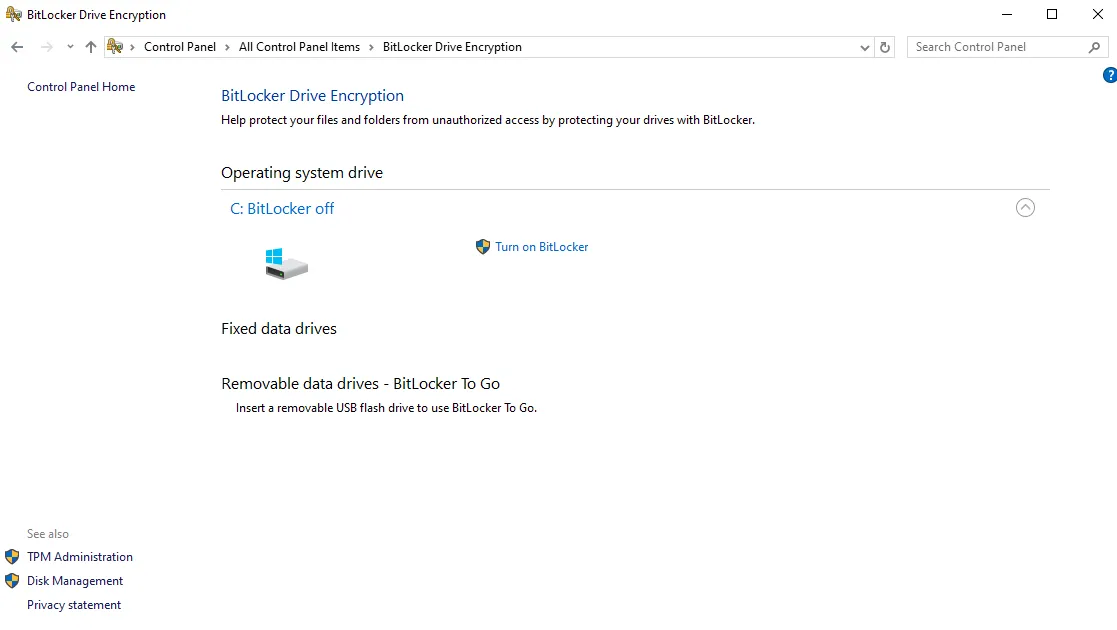
Search for Manage BitLocker, or open Control Panel → System and Security → BitLocker Drive Encryption. Select Turn on BitLocker beside the operating-system drive.
Step 2: Review the Startup Protector
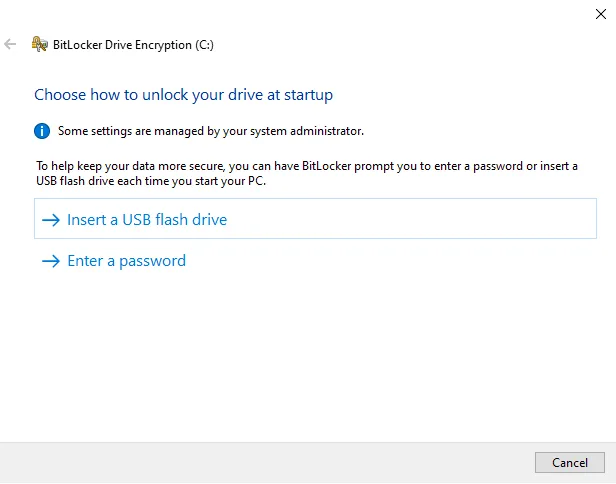
Available options depend on the TPM, Windows edition, hardware, and policy. Many personal computers use TPM-only protection. TPM + PIN adds pre-boot authentication but may need Group Policy or management configuration before the wizard offers it. A normal password is more common for data or removable drives than for the Windows system drive.
Step 3: Create the Requested PIN or Password
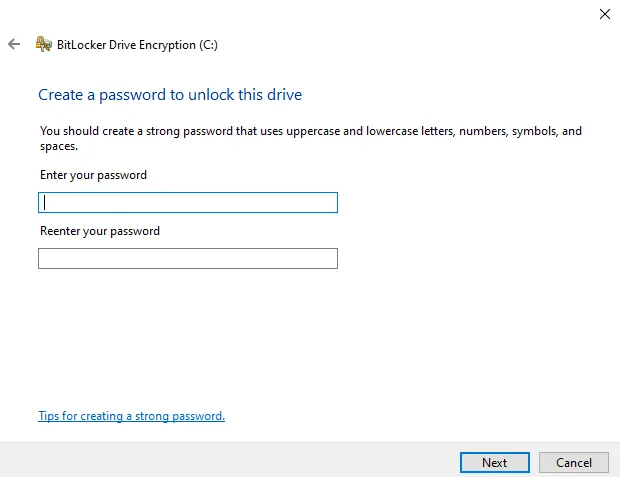
When the wizard requests a PIN or password, create a unique credential that follows the applicable security policy. The exact credential depends on the selected drive and key protector.
Step 4: Back Up the Recovery Key
The recovery key is a 48-digit number used when Windows cannot unlock the drive normally. Depending on the device and policy, storage choices can include a Microsoft account, work or school account, Microsoft Entra ID, Active Directory, USB drive, external file, or printed copy.
Review Microsoft’s recovery-key backup guide and confirm that the saved key belongs to the correct computer.

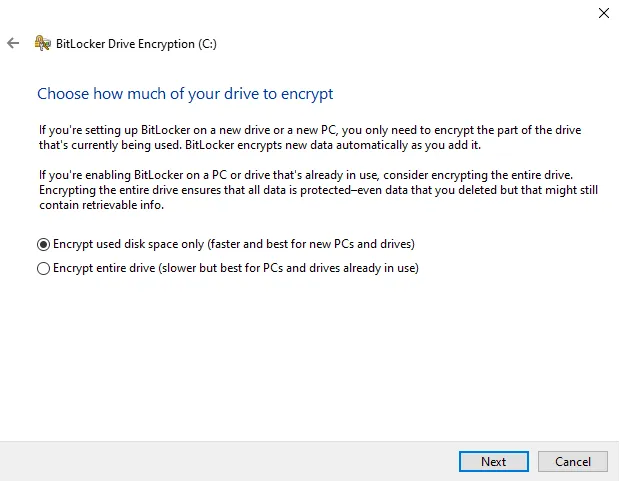
Step 5: Choose How Much to Encrypt
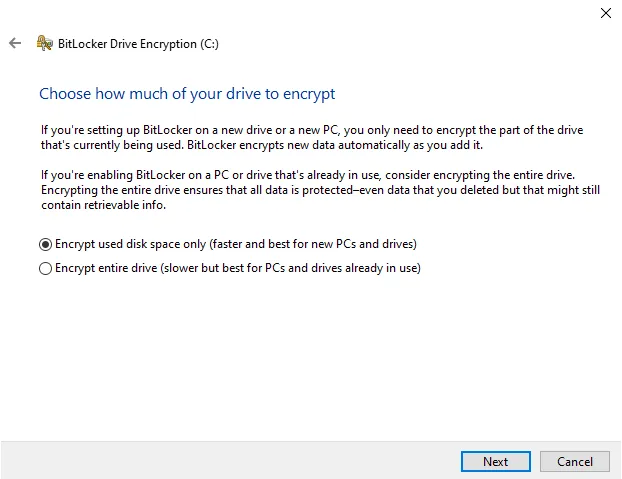
- Encrypt used disk space only: Faster for a new or securely erased drive.
- Encrypt the entire drive: Better for an existing drive that has already stored data.
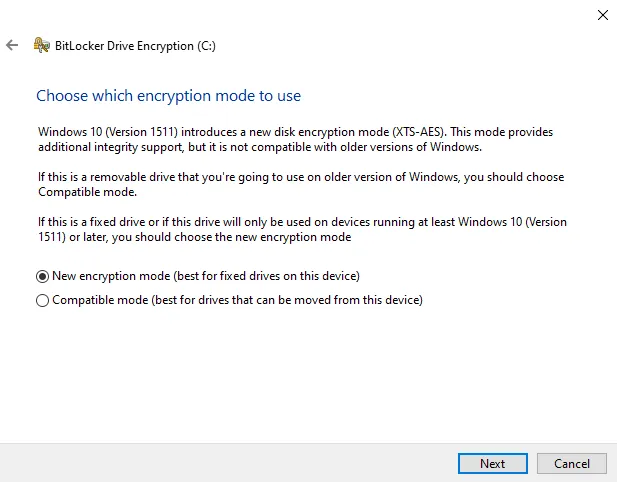
Step 6: Select the Encryption Mode
- New encryption mode: Uses XTS-AES and suits fixed drives on modern Windows systems.
- Compatible mode: Consider it for removable drives that must work with older supported Windows versions.
Step 7: Run the System Check
For the operating-system drive, Windows may offer a restart-based system check. It verifies that the startup protector and boot environment work before encryption continues.
Step 8: Start Encryption
Select Start encrypting. Keep a laptop connected to power and avoid firmware, TPM, partition, or storage changes while encryption is running.

Step 9: Monitor Progress
manage-bde -status C:The command reports conversion status, encryption percentage, encryption method, protection status, lock status, and key protectors.

4. Verify BitLocker Protection
manage-bde -status C:
manage-bde -protectors -get C:- Conversion Status: Fully Encrypted
- Percentage Encrypted: 100%
- Protection Status: Protection On
- Key Protectors: The expected TPM, PIN, recovery password, or approved protector
Microsoft’s manage-bde status reference documents each field.
5. Suspend BitLocker Before Some Maintenance Tasks
Firmware, TPM, motherboard, storage-controller, bootloader, or Secure Boot changes can trigger recovery. Some vendor tools suspend protection automatically, but verify that behavior instead of assuming it.
Suspend protection for one restart:
manage-bde -protectors -disable C: -RebootCount 1Resume it manually when required:
manage-bde -protectors -enable C:Suspending protectors does not decrypt the drive. Check that protection returns to On after maintenance. For Secure Boot changes, review the SupportSolved Secure Boot guide.
6. What BitLocker Does Not Protect
- Malware running inside an unlocked Windows session
- Weak Windows passwords or compromised accounts
- Deleted, corrupted, or overwritten files
- Data copied to an unencrypted location
- Anyone who obtains the correct recovery key
The main purpose of BitLocker on Windows is to protect data at rest. It is not a backup, antivirus product, or replacement for account security.
7. Common BitLocker Problems
| Problem | What to Check |
|---|---|
| Manage BitLocker is missing | Check the Windows edition and whether the device uses Device Encryption. |
| Recovery appears after an update | Use the correct key, then inspect firmware, TPM, boot, and protector changes. |
| TPM + PIN is not offered | Check TPM readiness and additional-authentication policy. |
| Protection Status is Off | Confirm whether protectors were suspended and re-enable them. |
| Recovery key cannot be found | Check Microsoft account, work or school account, Entra ID, AD, print, USB, file backup, and IT records. |
Frequently Asked Questions
Can I use BitLocker on Windows Home?
Windows Home normally lacks full manual BitLocker management. Qualifying devices may support Device Encryption, which uses BitLocker technology and can enable protection automatically.
Will BitLocker delete my files?
The normal encryption process preserves files, but storage failure, power loss, configuration mistakes, or missing recovery information can still create risk. Back up first.
Can Microsoft recover a missing key?
No. Microsoft Support cannot recreate a lost key. It can only help identify locations where the key may already have been saved.
Should I use TPM-only or TPM + PIN?
TPM-only is convenient and common. TPM + PIN adds pre-boot authentication but also increases user and recovery-management requirements. Follow the device risk level and organization policy.
Summary
BitLocker on Windows protects data at rest by encrypting operating-system, fixed, and removable drives. It is most effective when the TPM, startup protector, recovery-key storage, and maintenance process are planned together.
Back up important files, save the recovery key outside the encrypted device, select the correct options, and verify that protection is on after encryption finishes.
