
The most practical way to install Docker on Windows is to use Docker Desktop with the WSL 2 backend. This setup provides the Docker Engine, command-line tools, Docker Compose, and an interface for managing containers without requiring a separate Linux virtual machine.
Before installing anything, confirm that Windows is supported, hardware virtualization is enabled, and WSL is current. The installation itself is straightforward, but outdated WSL components, disabled virtualization, corporate proxy rules, or an unsupported Windows edition can prevent Docker Desktop from starting correctly.
Quick Answer
To install Docker on Windows with WSL 2:
- Enable hardware virtualization in BIOS or UEFI.
- Open PowerShell as Administrator and run
wsl --install. - Restart Windows, then run
wsl --update. - Download Docker Desktop from Docker or install it with WinGet.
- Use the WSL 2 backend for Linux containers.
- Start Docker Desktop and wait until the engine is running.
- Verify the setup with
docker run --rm hello-world.
The wsl --install command already enables the required WSL components, sets WSL 2 as the default for new distributions, and normally installs Ubuntu. You do not need to repeat the Ubuntu installation command unless you want a different or additional distribution.
Video: Install Docker on Windows with WSL 2
The video below covers virtualization, WSL installation, Docker Desktop setup, WSL integration, and the final container test.
1. Check the Docker Desktop Requirements
Before you install Docker on Windows, compare the computer with the current Docker Desktop requirements for Windows. For the WSL 2 backend, the important checks include:
- A supported 64-bit Windows release
- A 64-bit processor with virtualization support
- Hardware virtualization enabled in BIOS or UEFI
- At least 8 GB of system memory under Docker’s current requirements
- WSL version 2.1.5 or later
- Sufficient free storage for Docker images, containers, and WSL virtual disks
Docker supports Docker Desktop only on Windows versions that remain within Microsoft’s servicing timeline. Docker Desktop is also different from the Windows Server container runtime and is not supported on Windows Server editions.
Windows container support has additional edition and installation-mode requirements. Most developers following this guide should keep Docker Desktop in its default Linux-container mode with the WSL 2 backend.
2. Enable Hardware Virtualization
Open Task Manager → Performance → CPU and check the Virtualization value. If it shows Enabled, continue to the WSL step.
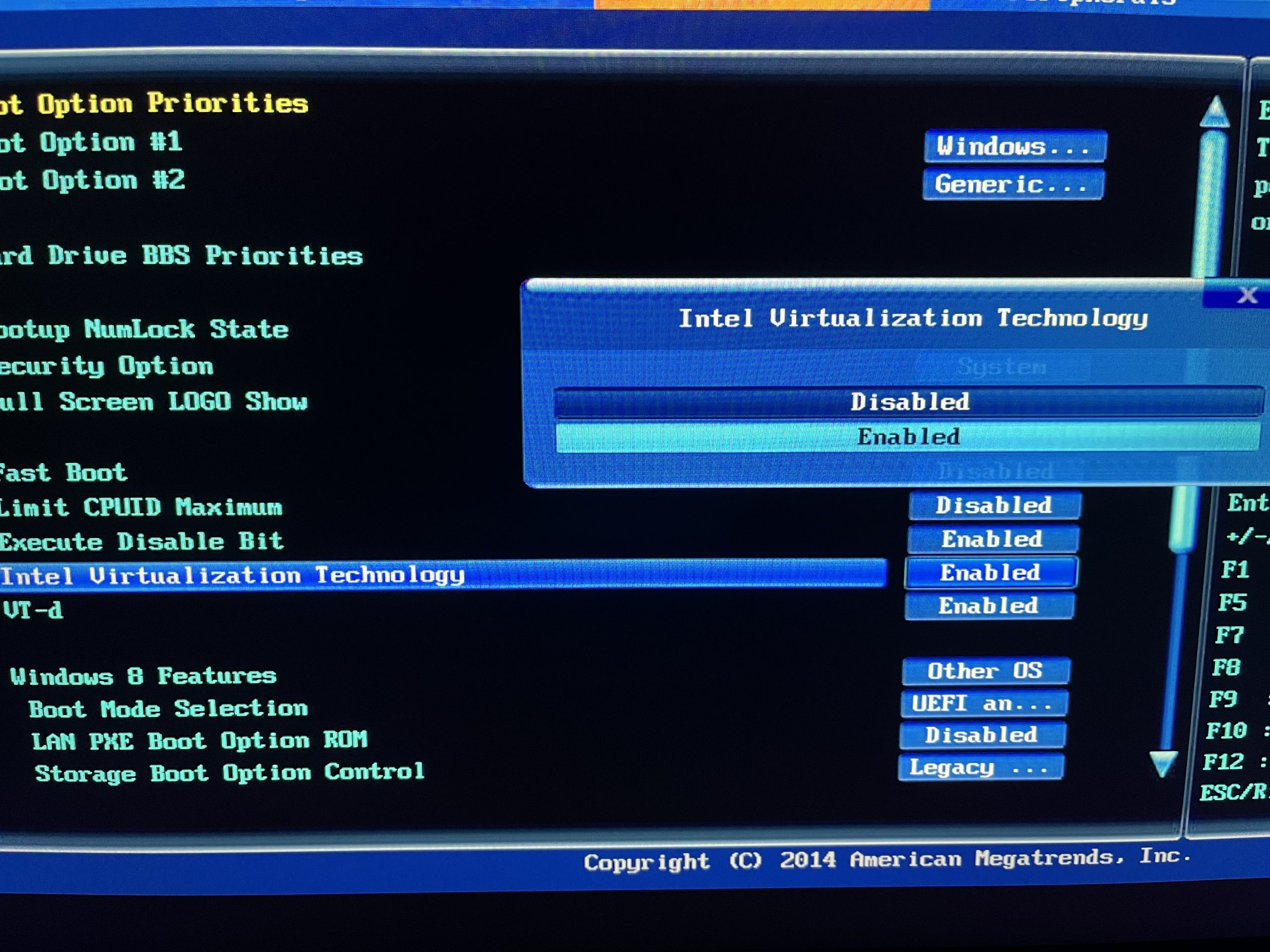
If it shows Disabled, restart the computer and open the firmware settings. The setting may be called:
- Intel Virtualization Technology
- Intel VT-x
- AMD-V
- SVM Mode
The firmware key and menu location vary by manufacturer. The SupportSolved BIOS vs UEFI guide explains how firmware mode differs from the Windows boot configuration.
3. Install and Update WSL 2
Open PowerShell as Administrator and run:
wsl --installRestart Windows if requested. Then update WSL and check the installed version:
wsl --update
wsl --version
wsl --status
wsl --list --verbose
Microsoft’s
official WSL installation guide
confirms that wsl --install enables the required components and installs the default Ubuntu distribution on supported systems.
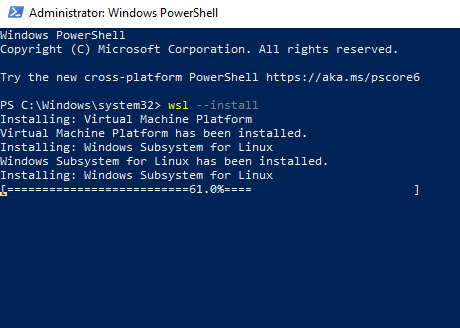
If WSL is already installed, wsl --install may display help information instead of changing the setup. In that case, use wsl --update and inspect the installed distributions with wsl -l -v.
4. Install Docker on Windows with Docker Desktop
Option 1: Official Installer
- Open the official Docker Desktop installation page.
- Download the correct Windows installer for the processor architecture.
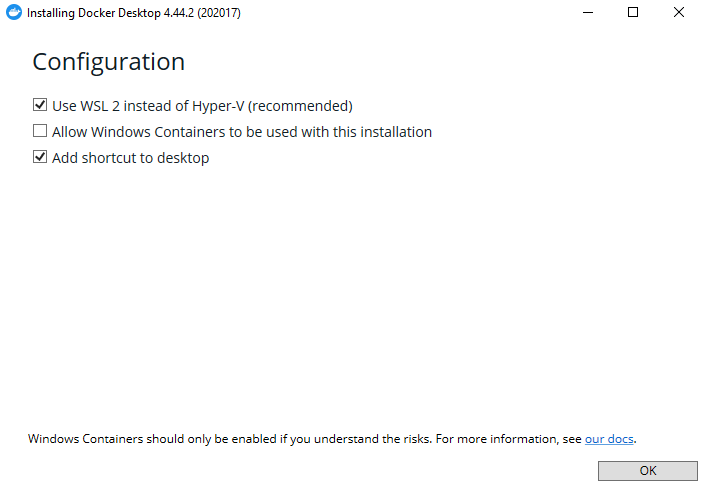
- Run the installer and select the WSL 2 backend for Linux containers.
- Choose the installation mode that matches the use case.
- Finish the installation and start Docker Desktop manually.
Docker currently recommends per-user installation for most users. It uses the WSL 2 backend and does not require administrator privileges for normal installation or updates. All-users installation is required for Windows containers and can also use Hyper-V.
Option 2: Install with WinGet
First inspect the package:
winget show --id Docker.DockerDesktop --exact --source wingetThen install the exact package:
winget install --id Docker.DockerDesktop --exact --source wingetReview any installer and license prompts instead of adding automatic acceptance switches without reading them. For application update commands, see the SupportSolved WinGet upgrade guide.
5. Complete the First-Run Setup
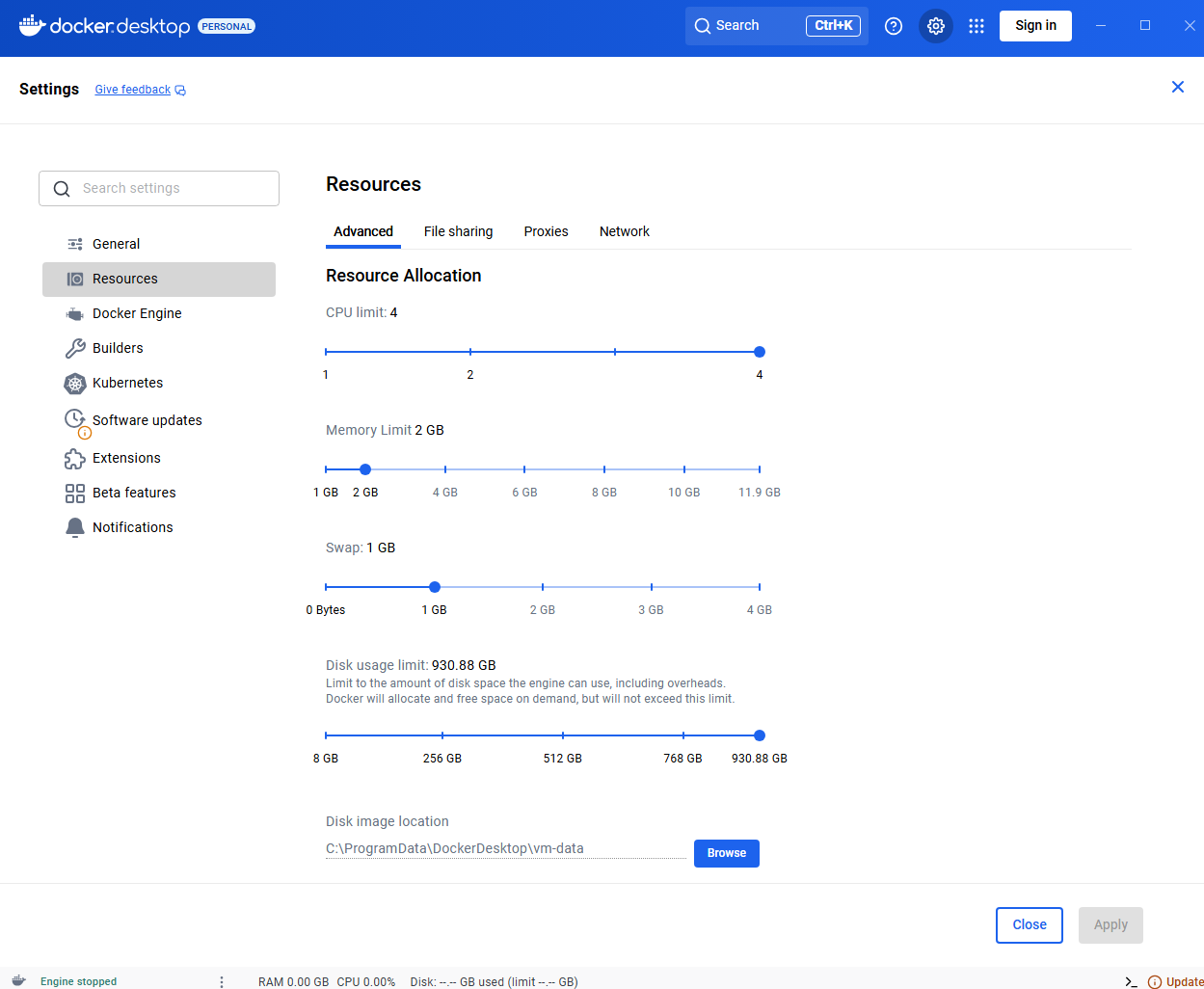
After you install Docker on Windows, start Docker Desktop from the Start menu and wait until the Docker Engine reports that it is running. Then review:
- General: Confirm that the WSL 2 engine is selected for Linux containers.
- Resources → WSL Integration: Enable integration only for the distributions that need Docker access.
- Resources or storage settings: Check the location of Docker’s virtual disk before downloading large images.
- Proxies: Configure the corporate proxy or PAC settings when required.
- Updates: Keep Docker Desktop and WSL current.
Do not enable every distribution automatically on a shared or managed computer. Limit integration to the environments that actually require access to the Docker Engine.
6. Verify the Docker Installation
After you install Docker on Windows, open PowerShell or Windows Terminal and run:
docker version
docker info
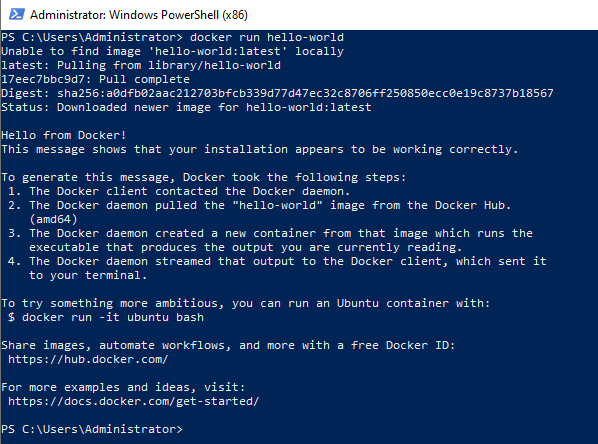
docker run --rm hello-world
A successful hello-world run confirms that the Docker client can contact the engine, download an image, create a container, and display its output.
For an interactive Linux-container test:
docker run --rm -it alpine shEnter exit to close the Alpine shell.
7. Improve File Performance with WSL 2
For Linux-container development, keep active project files inside the Linux distribution instead of repeatedly accessing them through a mounted Windows path. For example:
\\wsl$\Ubuntu\home\your-user\projectsDocker’s WSL 2 best-practices guide recommends keeping WSL current and using the Linux file system for better bind-mount performance.
Large images and build caches can consume significant disk space. Check usage periodically:
docker system dfDo not run aggressive cleanup commands on a working development system until you understand which images, volumes, and build caches will be removed.
8. Common Docker Desktop Installation Problems
| Problem | What to Check |
|---|---|
| Virtualization is disabled | Enable Intel VT-x, AMD-V, or SVM in BIOS/UEFI and confirm the status in Task Manager. |
| WSL version is too old | Run wsl --update, restart Windows, and check wsl --version. |
| A distribution still uses WSL 1 | Check wsl -l -v and convert it with wsl --set-version Ubuntu 2 when appropriate. |
| Docker remains on Starting | Run wsl --shutdown, restart Docker Desktop, and review Docker diagnostics before resetting data. |
| Image pulls fail on a corporate network | Check proxy, PAC, firewall, DNS, SSL inspection, and trusted-certificate requirements. |
| Bind mounts are slow | Move Linux-container project files into the WSL Linux file system and exclude unnecessary folders from mounts. |
| Docker command is not recognized | Start Docker Desktop, open a new terminal, and verify that the Docker CLI path is available. |
Frequently Asked Questions
Do I need to install Ubuntu separately?
Usually not. On a supported system with no existing WSL installation, wsl --install normally installs WSL 2 and the default Ubuntu distribution. Install another distribution only when the workflow requires it.
Do I need Hyper-V for Docker Desktop?
Not for the normal WSL 2 Linux-container setup. Hyper-V is an alternative backend available with the appropriate Windows edition and Docker Desktop installation mode.
Can Docker Desktop run Windows containers?
Yes, but Windows containers require a supported Pro or Enterprise Windows edition and Docker Desktop’s all-users installation mode. Per-user installation supports Linux containers through WSL 2.
Can I install Docker Desktop on Windows Server?
Docker Desktop is not supported on Windows Server. Use the container runtime and deployment guidance intended for the relevant Windows Server version instead.
How do I confirm that Docker is working?
Run docker version and docker run --rm hello-world. The first command checks client and engine communication; the second downloads and starts a test container.
Summary
To install Docker on Windows reliably, enable hardware virtualization, install or update WSL 2, use the correct Docker Desktop installation mode, and verify the engine with a real container.
For most users who install Docker on Windows, the WSL 2 backend is the most practical choice for normal Linux-container development. Keep WSL and Docker Desktop updated, store active Linux projects inside the WSL file system, and check proxy or security policies on managed networks.
Do not treat a successful installer screen as the final check. The installation is complete only after the Docker client can contact the engine and run the hello-world container successfully.