
How to Fix WordPress 500 Error via cPanel (PHP & .htaccess) – 2025
If your site shows a WordPress 500 error or a 503 Service Unavailable message, don’t panic. In many cases, you can restore the site quickly in cPanel.
For example, updating PHP, regenerating .htaccess,
or disabling a broken plugin usually resolves the issue.
Therefore, follow the steps below in order.
As a result, you can recover the site without breaking anything else.
Step 1 — Log in to cPanel
First, open your hosting control panel. Most providers use cPanel. Because of this, you can access PHP and File Manager quickly.
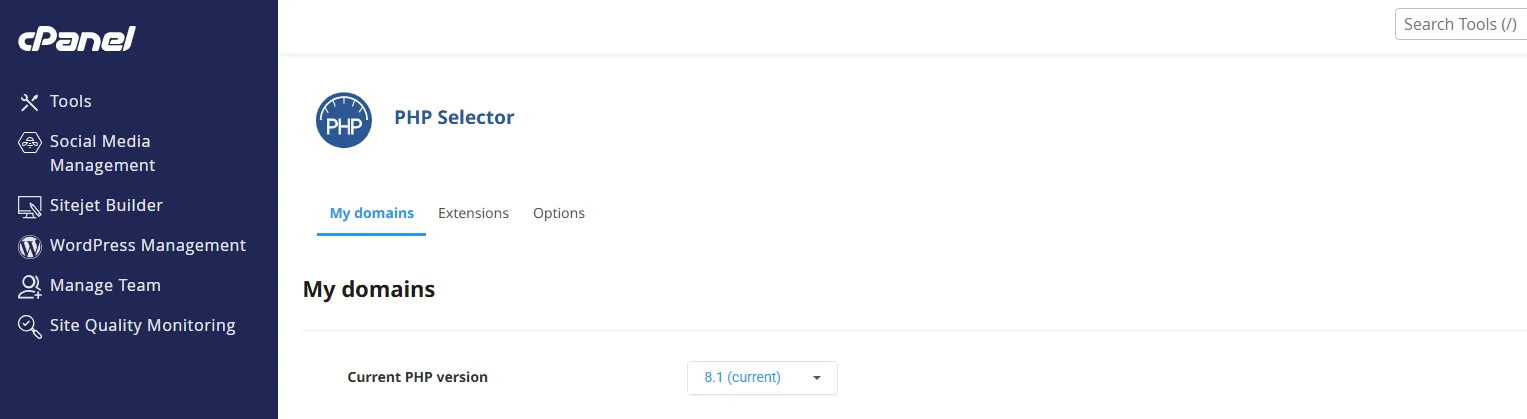
Step 2 — Select PHP Version
Next, find the PHP manager. It may be called Select PHP Version or MultiPHP Manager. In either case, note the current version before changing anything.
Step 3 — Update PHP (Fix WordPress 500 Error)
Outdated PHP can cause internal server failures. However, updating PHP is usually safe. Therefore, this is the best first fix.
- Select PHP
8.2or8.3. - Apply the change and wait a few seconds.
- Then reload your site in a new tab.
If the site loads, the main issue is resolved. If not, continue with the next steps.
Step 4 — Validate WordPress 500 Error Fix
Now, validate the result. Otherwise, cached pages may hide the real status. For this reason, test in an incognito window.
- Open the homepage and one post.
- Try the WordPress admin dashboard.
- Confirm that login and menus work.
Extra Checks for WordPress 500 Error
If the problem persists, run these safe checks. As a result, you can isolate the root cause quickly.
- Regenerate
.htaccess: Resave permalinks to rebuild rewrite rules. - Disable plugins: Rename the
pluginsfolder to test conflicts. - Switch theme: Activate a default theme temporarily.
WordPress 500 Error vs 503 Service Unavailable
Although both errors look similar, they have different causes. For example, 500 errors often relate to PHP or configuration. Meanwhile, 503 errors usually point to server limits or maintenance.
Temporary Debugging (Turn Off After)
If the issue keeps returning, enable debug logging. However, disable it after troubleshooting.
define('WP_DEBUG', true);
define('WP_DEBUG_LOG', true);
define('WP_DEBUG_DISPLAY', false);
Then check wp-content/debug.log.
This file often points to the failing plugin or function.
Prevention Tips
- Update WordPress, themes, and plugins regularly.
- Remove unused plugins and keep your stack lean.
- Test major changes on staging before production.
Helpful Resources
Related SupportSolved Guides
Conclusion
A WordPress 500 error can look serious. However, it is usually fixable in minutes. Start with PHP updates. Then check plugins and configuration files. As a result, most sites recover quickly.
Meta: Fix WordPress 500 error via cPanel by updating PHP, regenerating .htaccess, and isolating plugin conflicts.
