A WordPress 500 error means the server could not complete a request. The error message usually does not explain what failed.
Common causes include a failed plugin, an incompatible theme, a corrupt .htaccess file, a PHP error, low memory, or incorrect file permissions.
Start with a backup. Then check the server log and test one possible cause at a time.
Quick Answer
Use this order to troubleshoot a 500 Internal Server Error in WordPress through cPanel:
- Create a backup of the site files and database.
- Check the cPanel error log.
- Review the most recent site change.
- Disable WordPress plugins.
- Test the active theme.
- Rename the .htaccess file.
- Check the PHP version.
- Check the PHP memory limit.
- Enable WordPress debug logging.
- Check file permissions.
What Does the 500 Error Message Mean?
A 500 error message is a general server response. It means the server failed while processing the request.
The message does not identify the exact plugin, file, or PHP process that failed.
On a WordPress site, the problem may start after an update, plugin change, theme change, or server configuration change.
The error log usually gives you more useful information than the error page. It may show a plugin name, PHP file, function, permission problem, or memory limit.
1. Create a Backup First
Create a backup before changing WordPress files, plugins, themes, or PHP settings.
A wrong folder rename or configuration edit can create another problem. A backup gives you a safe way to undo the change.
Save at least:
- The files inside
public_htmlor the domain root. - The WordPress database.
- The current
wp-config.phpfile. - The current
.htaccessfile.
2. Check What Changed Before the Error
Check what happened just before the error started.
Common triggers include:
- A plugin installation or update.
- A theme installation or update.
- A WordPress core update.
- A PHP version change.
- A change to
wp-config.php. - A change to
.htaccess. - A site migration.
- A hosting configuration change.
If the error appeared after one of these actions, reverse that change first.
This is often faster than changing several unrelated settings.
3. Check the cPanel Error Log
The cPanel error log should be one of your first checks.
It may show the exact file, plugin, or PHP process that failed.
- Log in to cPanel.
- Open Errors, Error Log, or Metrics → Errors.
- Open the affected WordPress page again.
- Return to the log.
- Check the newest entries.
Look for messages such as:
PHP Fatal errorAllowed memory size exhaustedUncaught ErrorPermission deniedParse error
Check the file path in the error message. It may point directly to the plugin or theme that failed.
If the same component appears several times, test it first.
4. Disable WordPress Plugins
A plugin conflict is a common cause of a WordPress 500 error.
You can disable plugins from cPanel when wp-admin does not open.
- Open cPanel → File Manager.
- Open the
wp-contentfolder. - Find the
pluginsfolder. - Rename it to
plugins-disabled. - Reload the website.
If the site opens, a plugin is likely causing the problem.
Rename the folder back to plugins.
Activate the plugins one at a time. Test the site after each activation.
When the error returns, check the last plugin you enabled.
5. Test the Active Theme
If disabling plugins does not help, test the active theme.
- Open cPanel → File Manager.
- Open
wp-content/themes. - Find the active theme folder.
- Add
-disabledto its name. - Reload the site.
If the site opens with the default theme, the original theme may be damaged or incompatible.
6. Reset the .htaccess File
A corrupt .htaccess file can cause an Internal Server Error on Apache-based hosting.
- Open the WordPress document root.
- Enable Show Hidden Files if needed.
- Download a copy of
.htaccess. - Rename the server copy to
.htaccess-old. - Reload the site.
Can You Rename the 500 Internal Server Error in WordPress?
You cannot rename the 500 Internal Server Error in WordPress. The error itself is an HTTP response.
What you can rename is the .htaccess file. This temporarily removes its rules from the request.
If the WordPress site works after the rename, the previous .htaccess file may contain invalid rules.
Go to Settings → Permalinks → Save Changes. WordPress can then create fresh rewrite rules.
See the official WordPress .htaccess documentation.
You can also read our WordPress HTTPS redirect using .htaccess guide.
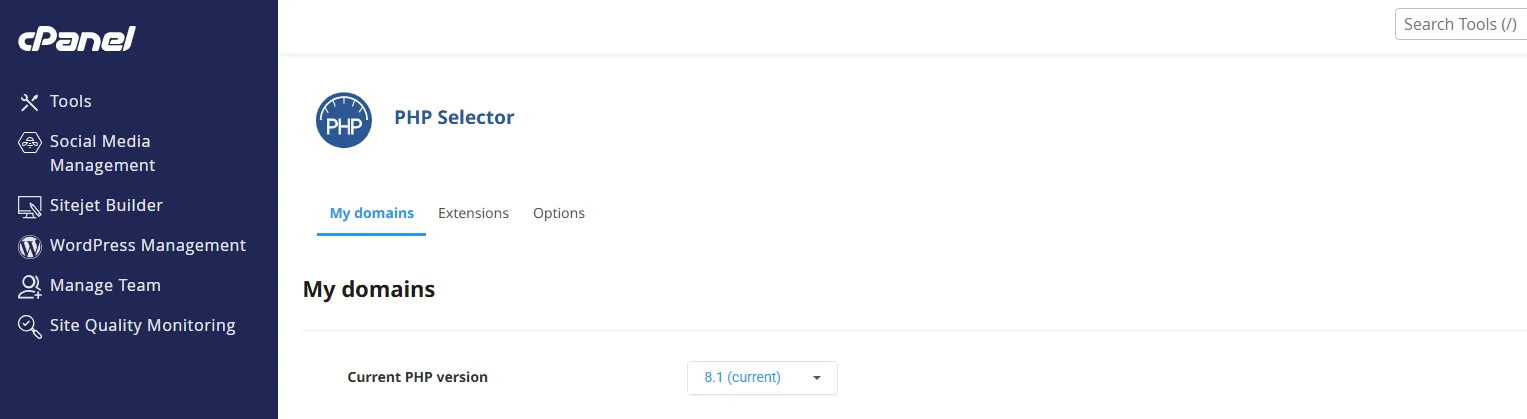
7. Check the PHP Version
A PHP version change can solve a compatibility problem. It can also create one.
- Open cPanel → MultiPHP Manager.
- Check the current PHP version.
- Check whether the error started after a PHP change.
- Confirm that WordPress supports the selected version.
- Check theme and plugin compatibility.
If the error appeared after a PHP upgrade, return to the previous working version for testing.
Reload the site after the change.
If the site works again, update or replace the incompatible plugin or theme before upgrading PHP again.
8. Check the PHP Memory Limit
Do not increase memory unless the log shows memory exhaustion.
A common error message is:
Allowed memory size exhausted
You can add this line to wp-config.php:
define( 'WP_MEMORY_LIMIT', '256M' );Does Increasing the 500 Internal Server Error in WordPress Memory Limit Help?
The phrase increasing the 500 Internal Server Error in WordPress is misleading. You are not increasing the error. You are increasing the PHP memory available to WordPress.
A higher memory limit can help when the error log shows memory exhaustion.
If there is no memory-related error message, increasing the limit is unlikely to fix the site.
Repeated memory errors may point to a plugin, theme function, import, backup job, or database process that uses too many resources.
9. Enable WordPress Debug Logging
If the cPanel error log does not show enough information, enable WordPress debug logging.
Add or update these values in wp-config.php:
define( 'WP_DEBUG', true );
define( 'WP_DEBUG_LOG', true );
define( 'WP_DEBUG_DISPLAY', false );
Reload the page that shows the error.
Then open:
wp-content/debug.logRead the newest entries first.
Look for a plugin name, theme name, PHP file, or function.
WordPress core files are stored in directories such as wp-admin and wp-includes.
Do not rename these core folders during normal troubleshooting.
10. Check WordPress File Permissions
Incorrect permissions can stop the server from reading required WordPress files.
Common values are:
- Directories:
755 - Files:
644
These values are common, but they are not universal.
File ownership and server configuration also matter.
11. Verify the Fix
Do not stop testing when the homepage opens.
Check the WordPress site again after each fix.
Test these areas:
- The homepage.
- Several posts and pages.
- wp-admin.
- Login and logout.
- Contact forms.
- Search.
- Navigation menus.
- Important plugins.
Then return to the error log.
Check for new warnings or fatal errors.
This step helps confirm that the fix solved the cause instead of only hiding the error page.
12. 500 Error vs 503 Service Unavailable
A 500 error and a 503 Service Unavailable error are different.
- 500 Internal Server Error: Often linked to PHP failures, plugins, themes, .htaccess rules, permissions, or memory problems.
- 503 Service Unavailable: Often linked to maintenance mode, exhausted server resources, PHP workers, or temporary hosting problems.
Some troubleshooting steps overlap.
For a persistent 503 error, also check hosting resources and server availability.
13. When to Contact Your Hosting Provider
Some server problems cannot be fixed from WordPress alone.
Contact your host when:
- The cPanel error log is empty or unavailable.
- Non-WordPress files also return a 500 error.
- PHP-FPM, Apache, or LiteSpeed is failing.
- The hosting account has reached CPU or memory limits.
- File ownership is incorrect.
- The site still fails with all plugins disabled.
- The site still fails with a default theme active.
Send the hosting provider the approximate time of the error.
Include the relevant log entries and the troubleshooting steps you already tried.
Frequently Asked Questions
What causes a WordPress 500 error?
Common causes include PHP errors, failed plugins, incompatible themes, damaged .htaccess rules, memory exhaustion, and incorrect permissions.
Can I disable plugins without wp-admin?
Yes. Rename the plugins folder from cPanel File Manager and reload the site.
Where is the WordPress debug log?
The default path is wp-content/debug.log.
Should I increase PHP memory immediately?
No. Increase it only when the error log shows memory exhaustion.
Can .htaccess cause an Internal Server Error?
Yes. Invalid rewrite rules or unsupported directives can cause an Internal Server Error on Apache-based hosting.
Summary
Start with a backup and the cPanel error log.
Then check recent changes, plugins, the theme, .htaccess, PHP compatibility, memory, debug logs, and file permissions.
Change one thing at a time. Test the site after every change.
For more WordPress troubleshooting articles, visit the SupportSolved WordPress guides.
