
A child theme in WordPress lets you customize a theme without editing its original files. Your CSS, templates, and theme-specific functions stay in a separate folder, so a parent-theme update does not overwrite them.
Use a child theme when you need to change template files, theme markup, or theme-specific PHP. For a few colors, fonts, or spacing adjustments, WordPress Additional CSS or the Site Editor may be enough.
Quick Answer
The easiest way to create a child theme in WordPress is to use a trusted generator plugin:
- Back up the website.
- Install Child Theme Configurator.
- Create a child theme from the active parent theme.
- Activate it under Appearance → Themes.
- Check the homepage, menus, widgets, templates, and mobile layout.
- Add custom CSS or template changes only to the child theme.
Do not edit the parent theme after the child theme is active. Parent-theme updates can still replace direct changes made inside the parent folder.
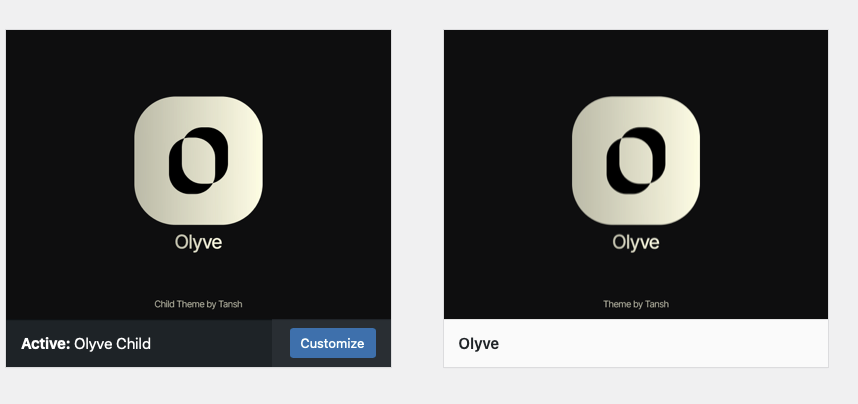
1. What Is a Child Theme in WordPress?
A child theme in WordPress inherits templates, styles, and features from another theme called the parent theme. The child folder contains only the files you add or override.
This structure keeps the original theme clean. When the parent theme receives security fixes or feature updates, your separate child-theme files remain in place.
A child theme is not a complete copy of the parent. Copy only the template files you actually need to change. Duplicating the full parent theme makes future maintenance harder and can leave old templates in the child folder.
2. When Should You Use a Child Theme?
Use one when the customization requires changes such as:
- Editing a header, footer, archive, or single-post template
- Adding theme-specific PHP functions or hooks
- Changing theme markup or template parts
- Maintaining a large set of custom styles
- Keeping project-specific theme changes in one documented location
You probably do not need one for a few CSS declarations, a logo change, menu updates, widget settings, or adjustments available in the Site Editor. I avoid adding a child theme when WordPress already provides a safe built-in setting for the same change.
3. How to Create a Child Theme in WordPress Without Code
- Create a backup: Back up the database and website files before changing themes.
- Install the generator: Open Plugins → Add New, search for Child Theme Configurator, install it, and activate it.
- Select the parent theme: Choose the currently active theme and let the plugin analyze its configuration.
- Create the child theme: Keep the generated folder name clear and recognizable.
- Activate it: Open Appearance → Themes and activate the newly created child theme.
- Clear caches: Clear WordPress, optimization-plugin, CDN, and browser caches if the site still shows an older version.
For the manual folder and file structure, review the official WordPress Child Themes documentation.
4. Verify the Child Theme Setup
After activation, check:
- The homepage and important landing pages
- Desktop and mobile navigation
- Header and footer content
- Widgets and sidebars
- Single posts, pages, archives, and search results
- WooCommerce pages when the site uses WooCommerce
- Browser console errors and broken layouts
Then make one small test change in the child theme. If the change appears and the parent design remains intact, the setup is working.
5. Child Theme Best Practices
- Change only the files required for the customization.
- Do not edit parent-theme files after activating the child theme.
- Add comments to custom functions and keep a short changelog.
- Use version control when the website has ongoing development work.
- Test parent-theme updates on staging before updating production.
- Remove outdated template overrides when the parent structure changes.
- Keep business logic and content features in a plugin.
The main maintenance risk is an old template override. A parent update may change its template structure while the child theme continues loading an older copied file. I compare overridden templates after major parent-theme releases instead of assuming that the update is automatically compatible.
If a parent-theme update requires work on the live website, use a maintenance page and complete the checks before reopening the site. See the SupportSolved WordPress maintenance mode guide for the setup steps.
6. Common Child Theme Problems
| Problem | What to Check |
|---|---|
| Child theme cannot find the parent | Confirm that the parent theme is installed and the child configuration references the correct parent folder. |
| Custom CSS does not appear | Clear all caches, inspect CSS priority, and confirm that the child stylesheet is loading. |
| Changes disappear after an update | Confirm that the edited file was inside the child theme and not the parent folder. |
| Layout breaks after a parent update | Compare copied templates with the updated parent versions and update outdated overrides. |
| Features disappear after changing themes | Move site functionality from the child theme to a site-specific plugin. |
Frequently Asked Questions
Will a parent-theme update delete my changes?
Not when the changes are stored in the child-theme folder. However, a parent update can still introduce compatibility issues with copied templates or custom functions.
Do I need a child theme for CSS only?
Not usually for a few CSS changes. Use Additional CSS or the Site Editor first. A child theme becomes more useful when styles are extensive or template and PHP changes are also required.
Can I create a child theme after customizing the parent?
Yes, but first identify every direct parent-theme modification and move it into the child theme. Creating the child theme alone does not automatically transfer existing edits.
Should custom functionality go in the child theme?
Only when the functionality is tied directly to the theme’s display or markup. Features that should remain after a theme change belong in a plugin.
Summary
A child theme in WordPress protects theme customizations from being overwritten during parent-theme updates. Use one for template, markup, extensive CSS, and theme-specific PHP changes.
For small visual adjustments, use WordPress’s built-in design settings first. When a child theme is required, create a backup, generate and activate it, test the main pages, and keep every customization documented.
The safest long-term approach is to keep design changes in the child theme, site functionality in a plugin, and major parent-theme updates on a staging site until compatibility is confirmed.
